
Troubleshooting Content Sharing Issues on Video Conferencing Room Systems
Troubleshooting Content Sharing Issues on Video Conferencing Room Systems
Content sharing is an essential feature of video conferencing room systems, allowing participants to share presentations, documents, and computer screens during meetings.
However, problems can occur when shared content fails to display, replaces the main camera feed, or appears as a black screen.
These issues are commonly associated with incorrect display settings, unsupported or improperly configured sharing protocols, Network Address Translation (NAT), and firewall restrictions.
This article explains how dual-stream content sharing works and how to troubleshoot common problems affecting H.323 and SIP-based video conferencing systems.
Understanding Dual-Stream Content Sharing
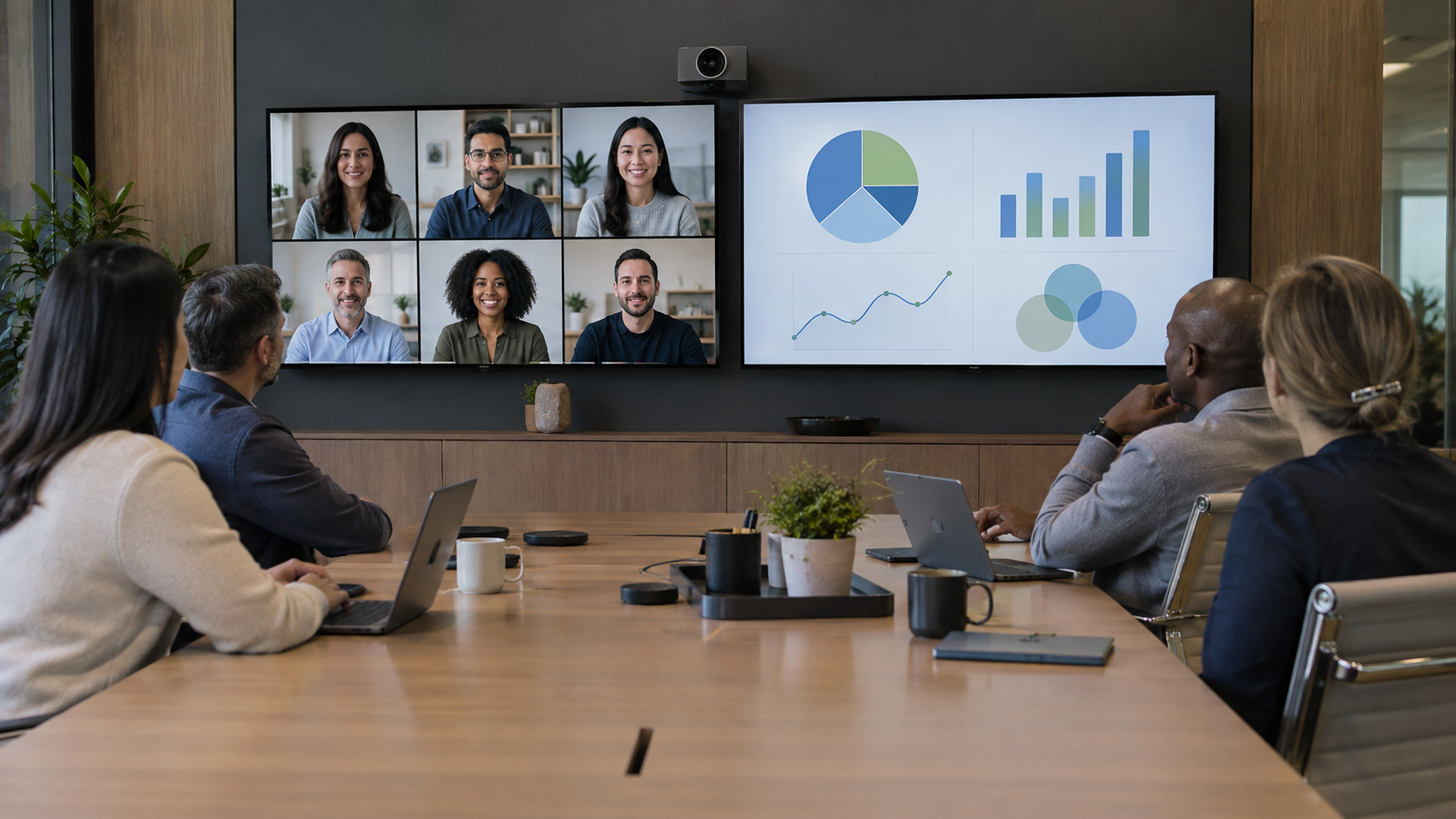
Dual-stream content sharing allows a video conferencing system to transmit the main camera feed and presentation content as separate video streams.
For example, in a conference room equipped with two monitors:
- Monitor 1 displays the remote meeting participants.
- Monitor 2 displays the shared presentation or computer screen.
Two common protocols support this functionality:
- H.239 (H.323): Enables a secondary video stream for presentations and other shared content during H.323 video calls.
- BFCP (SIP): Binary Floor Control Protocol, used to coordinate presentation sharing in supported SIP-based video calls.
For dual-stream content sharing to work correctly, several conditions must be met:
- The video conferencing system must support and have the appropriate content sharing protocol enabled.
- The room system must be configured to display the main camera feed and shared content on the appropriate monitors.
- NAT traversal must be configured correctly when communication occurs across different networks.
- Firewalls must permit the signaling and media traffic required by the conferencing system.
The remote endpoint or conferencing platform must also support and successfully negotiate the required content sharing functionality.
Common Content Sharing Problems
1. Shared Content Replaces the Main Video Feed
Symptom:
When a user shares a presentation, the shared content replaces the main video feed rather than appearing on a separate monitor or in a second content window.
In some instances, the shared presentation occupies most of the display while the camera feed appears as a small picture-in-picture (PIP) window.
Possible Causes:
- H.239 or BFCP is disabled or fails to negotiate properly.
- NAT traversal is incorrectly configured.
- The conferencing system advertises an internal IP address that cannot be reached by the remote endpoint.
- Firewall restrictions prevent the secondary content stream from being established.
- The conferencing service combines the presentation and camera feed into a single stream.
- The room system’s display settings are configured incorrectly.
Troubleshooting Steps:
- Verify that H.239 or BFCP is enabled and supported by the connected systems.
- Check the system’s display configuration to confirm that dual-screen presentation mode is enabled where supported.
- Review NAT traversal settings and confirm that the appropriate external IP address is being advertised.
- Check firewall rules for blocked content-sharing traffic.
- Verify that the conferencing platform supports separate presentation streams for the selected connection method.
- Restart content sharing and test again.
2. No Content Sharing or Black Screen
Symptom:
A participant attempts to share content, but the receiving endpoint displays one of the following:
- A black screen.
- Only the local camera or self-view.
- The main video feed without any shared content.
- An empty presentation window.
Possible Causes:
The issue may be caused by incorrect NAT configuration, blocked network traffic, failed content-stream negotiation, or problems decoding the incoming presentation.
For example, an endpoint may advertise its private IP address during call negotiation. If the remote system attempts to send content to that private address across the Internet, the content will not reach its destination without suitable traversal or translation.
Troubleshooting Steps:
- Confirm that H.239 or BFCP is enabled on the applicable endpoints.
- Check whether the problem occurs when sharing content locally, remotely, or both.
- Verify the room system’s video input and display output settings.
- Review firewall logs for blocked TCP or UDP traffic associated with the presentation.
- Confirm that NAT traversal is correctly configured.
- Check the device’s firmware version and apply supported updates.
- Test content sharing from a different source or receiving endpoint to isolate the problem.
If the presentation appears locally but not at the remote endpoint, investigate content-stream negotiation and network connectivity before replacing cables or displays.
3. Content Sharing Starts but Stops Unexpectedly
Symptom:
Content sharing initially works but freezes, disappears, or fails when another participant starts presenting.
Possible Causes:
- Firewall UDP session timeouts.
- Application Layer Gateway (ALG) interference.
- Network address or media-port translation issues.
- Endpoint firmware or protocol compatibility problems.
Troubleshooting Steps:
- Review the firewall’s session timeout settings.
- Check whether the content stream is being interrupted or blocked.
- Verify that SIP or H.323 inspection settings follow the conferencing vendor’s recommendations.
- Check for firmware and firewall software updates.
- Test whether restarting content sharing temporarily restores functionality.
Some firewall configurations may permit the initial audio and video streams but fail to maintain the additional content-sharing session.
How NAT Can Affect Content Sharing
Network Address Translation (NAT) allows devices using private IP addresses to communicate with external networks through public IP addresses.
Video conferencing systems using H.323 or SIP may exchange network addressing information during call setup and media negotiation.
For example, an endpoint might have the following addresses:
- Private IP address:
192.168.1.100 - Public IP address:
203.0.113.10(example address)
If the endpoint incorrectly advertises 192.168.1.100 to an external system, the remote endpoint may attempt to establish a content stream using an address that is not reachable across the Internet.
This can result in the presentation replacing the main video stream, failing to appear, or displaying a black screen.
Resolving NAT Issues
Depending on the conferencing equipment and network design, possible solutions include:
- Configuring the endpoint’s NAT traversal settings correctly.
- Ensuring that the proper public IP address is advertised during signaling.
- Using a supported firewall traversal solution, gatekeeper, or Session Border Controller (SBC).
- Configuring static one-to-one NAT when specifically required by the endpoint or conferencing architecture.
- Verifying that firewall rules permit the necessary signaling and media traffic.
Static one-to-one NAT is not a universal requirement. Many conferencing platforms provide dedicated traversal mechanisms that should be used according to the manufacturer’s documentation.
Firewall Configuration and Port Requirements
Video conferencing systems require network access for call signaling, audio, video, and presentation content.
The required ports depend on the equipment, protocol, calling infrastructure, and conferencing service.
Common protocol examples include:
| Protocol | Common Port or Transport | Purpose |
|---|---|---|
| H.225 (H.323) | TCP 1720 | Call signaling |
| H.245 (H.323) | TCP, negotiated or configured ports | Media control and negotiation |
| SIP | TCP/UDP 5060 | SIP signaling |
| SIP over TLS | TCP 5061 | Encrypted SIP signaling |
| RTP/RTCP | UDP, vendor-defined ranges | Audio, video, and content media |
| BFCP | TCP or UDP, depending on implementation | SIP presentation control |
These are protocol examples, not a complete firewall configuration.
Consult the conferencing provider’s current network requirements before opening ports. Avoid unnecessarily exposing broad inbound port ranges or enabling firewall inspection features without confirming compatibility.
Firewall Inspection and ALG
Some firewalls provide SIP or H.323 Application Layer Gateway functionality to inspect and modify communication traffic.
Although these features may help in certain network environments, they can also interfere with video conferencing signaling and content sharing.
Follow the equipment manufacturer’s recommendations when enabling or disabling ALG or protocol inspection.
Recommended Troubleshooting Checklist
When diagnosing content-sharing problems, use the following order:
- Verify the source: Confirm the computer or other presentation source is detected and displays locally.
- Check the display configuration: Ensure the room system is configured for the intended single-screen or dual-screen layout.
- Confirm protocol support: Verify H.239 for applicable H.323 calls or BFCP for applicable SIP calls.
- Test another endpoint: Determine whether the issue affects one system or multiple conference participants.
- Review NAT settings: Confirm the endpoint uses the correct addressing and traversal configuration.
- Inspect firewall traffic: Look for blocked media connections, incorrect port mappings, or session timeouts.
- Check firmware: Ensure the endpoint and relevant network equipment are running supported software versions.
- Retest content sharing: Confirm that shared content reaches the remote endpoint and displays as intended.
References
- BlueJeans, Common Content Sharing Issues for Room Systems (August 7, 2019), Physical Document.
- Cisco: Configure Presentation Sharing Using BFCP
- Pexip: Firewall Troubleshooting
- Pexip: Firewall Rules and Ports