
Apple Mobile Device Drivers on Windows
Understanding Apple Mobile Device Drivers on Windows
If you support Windows systems in an enterprise or helpdesk environment, you have almost certainly run into issues where an iPhone or iPad simply refuses to appear when connected by USB. The device charges, but it does not show up in File Explorer, iTunes, or management tools. In Device Manager, it may appear as an unknown USB device or not appear at all.
At the root of this problem is a missing or broken Apple Mobile Device Driver installation.
This article explains what Apple Mobile Device Drivers are, how they work on Windows, why they frequently fail, and how they can be repaired using both a lightweight PowerShell based approach and a fully manual driver installation process without repeatedly reinstalling iTunes.
What Are Apple Mobile Device Drivers
Apple Mobile Device Drivers are the Windows USB drivers and background services that allow Windows to communicate with iPhones and iPads over USB.
They are required for:
- Detecting iOS and iPadOS devices when connected by USB
- File access through File Explorer
- iTunes device recognition and syncing
- Backup and restore operations
- Trust and pairing prompts
Without these drivers, Windows treats the device as a power only connection.
Components Involved on Windows
A healthy Apple device connection on Windows relies on several pieces working together.
Apple Mobile Device USB Driver
This is the USB driver that binds the physical Apple device to Windows Plug and Play. It typically appears in Device Manager under Universal Serial Bus controllers or Portable Devices.
If this driver is missing or corrupted, the device will not appear anywhere in Windows.
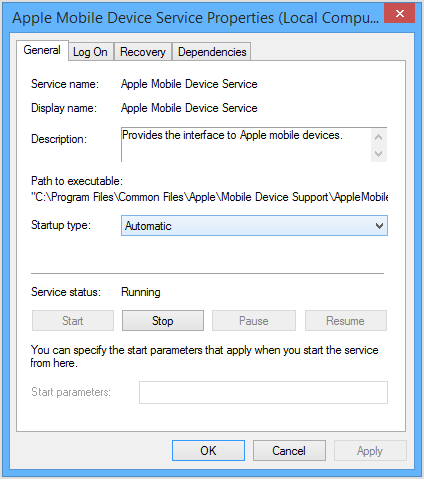
Apple Mobile Device Service
This Windows service runs in the background and manages communication between Windows applications and the connected Apple device.
Service name:
Apple Mobile Device Service
Startup type:
Automatic
If this service is missing or stopped, devices may connect briefly and then disappear.
Driver Files and INF Packages
Apple installs driver files and INF definitions under:
C:\Program Files\Common Files\Apple\Mobile Device SupportC:\Program Files (x86)\Common Files\Apple\Mobile Device Support
These files tell Windows how to associate Apple hardware with the correct USB drivers.
Why Apple Mobile Device Drivers Commonly Fail
In real world support scenarios, these drivers break far more often than they should. Common causes include:
- Partial or failed iTunes updates
- Windows feature updates overwriting driver registrations
- Uninstalling iTunes without cleanly removing Apple support components
- Conflicts between Microsoft Store iTunes and the standalone installer
- Endpoint security software blocking driver installation
- USB controller or chipset driver updates
From a user’s perspective, the failure is silent and confusing. From an IT perspective, it is almost always a driver problem.
The Problem with Reinstalling iTunes
The most common fix suggested online is reinstalling iTunes. While this can work, it introduces several issues:
- Installs unnecessary applications and background services
- Adds auto update processes
- Requires admin rights and sometimes reboots
- Often fails if the underlying driver registration is already broken
For IT support and documentation purposes, this approach is inefficient and unreliable.
Manual Installation of Apple Mobile Device Drivers
A cleaner and more predictable solution is to manually install only the required Apple drivers. This avoids installing the full iTunes application and gives you full control over what is being added to the system.
Step 1: Download the iTunes Standalone Installer
Download the 64 bit Windows version of iTunes directly from Apple. This package contains the Apple Mobile Device Support installer that we need.
Download link:
https://www.apple.com/itunes/download/win64
Do not run the installer yet.
Step 2: Extract the Installer and Install Apple Mobile Device Support
Using WinRAR or 7 Zip, extract the contents of the iTunes installer instead of launching it.
Inside the extracted files, locate:
AppleMobileDeviceSupport64.msi
Run this MSI file directly. This installs the Apple Mobile Device Support components without installing the full iTunes application.
Step 3: Download the Required Apple Driver Packages
Next, download the official Apple driver CAB files from the Microsoft Update Catalog.
These are the same drivers Windows would normally attempt to download automatically.
Step 4: Extract the CAB Files
Using WinRAR or 7 Zip, extract each CAB file into its own folder.
Inside each extracted folder, locate the .inf files. These files define how Windows installs and binds the driver.
Step 5: Install the Drivers Manually
For each extracted driver folder:
- Right click the
.inffile - Select Install
Repeat this process for both the Apple USB Drivers and Apple Tether USB Drivers packages.
Windows will install the drivers silently.
Verifying a Successful Installation
After completing the installation, confirm everything is working as expected.
Device Manager
- iPhone or iPad appears without warning icons
- Apple Mobile Device USB Driver is present
Services
- Apple Mobile Device Service exists
- Service is running and set to Automatic
User Experience
- Device prompts “Trust This Computer”
- Device appears under This PC
- iTunes detects the device immediately if installed
If all of these checks pass, the driver stack is functioning correctly.
PowerShell Based Repair Option (Automated)
For repeat troubleshooting or helpdesk workflows, this entire process can be automated using PowerShell.
A GitHub project called Apple Mobile Drivers Installer by NelloKudo provides a script that:
- Downloads the iTunes installer and extracts it
- Installs
AppleMobileDeviceSupport64.msisilently - Downloads the Apple USB and Apple Tether (Mobile Device Ethernet) drivers from Microsoft Update Catalog
- Extracts the CAB files
- Installs all included
.infdrivers usingpnputil
Project page:
https://github.com/NelloKudo/Apple-Mobile-Drivers-Installer
Note: Admin privileges are required
The script checks whether it is running as an administrator and exits if it is not. You must open PowerShell or Windows Terminal as Administrator before running it, or it will not install the drivers.
How to run the script (recommended method)
- Open PowerShell (or Windows Terminal) as Administrator
- Paste the following one-liner and press Enter:
iex (Invoke-RestMethod -Uri 'https://raw.githubusercontent.com/NelloKudo/Apple-Mobile-Drivers-Installer/main/AppleDrivInstaller.ps1')This is the command shown in the project README and it runs the latest version of the script directly from the repository.
Script used by the project
The script file is AppleDrivInstaller.ps1.
Source link: https://raw.githubusercontent.com/NelloKudo/Apple-Mobile-Drivers-Installer/main/AppleDrivInstaller.ps1
Copy of the script content (as of February 8, 2026):
## Apple USB and Mobile Device Ethernet drivers installer!
## Please report any issues at GitHub: https://github.com/NelloKudo/Apple-Mobile-Drivers-Installer

## Download links for Apple USB Drivers and Apple Mobile Ethernet USB Drivers respectively.
## All of these are downloaded from Microsoft's Update Catalog, which you can browse yourself at here: https://www.catalog.update.microsoft.com/

$AppleDri1 = "https://catalog.s.download.windowsupdate.com/d/msdownload/update/driver/drvs/2020/11/01d96dfd-2f6f-46f7-8bc3-fd82088996d2_a31ff7000e504855b3fa124bf27b3fe5bc4d0893.cab"
$AppleDri2 = "https://catalog.s.download.windowsupdate.com/c/msdownload/update/driver/drvs/2017/11/netaapl_7503681835e08ce761c52858949731761e1fa5a1.cab"
$AppleITunesLink = "https://www.apple.com/itunes/download/win64"

Write-Host ""
Write-Host -ForegroundColor Cyan "Welcome to Apple USB and Mobile Device Ethernet drivers installer!!"
Write-Host ""

## Checking if the script is being run as admin..
if (-not ([Security.Principal.WindowsIdentity]::GetCurrent().Groups -contains 'S-1-5-32-544')) {
    Write-Host -ForegroundColor Yellow "This script requires administrative privileges!"
    Write-Host -ForegroundColor Yellow "Please run the script as an administrator if you want to install drivers."
    pause
    exit 1
}

## Preparing the system to actually download drivers..
$destinationFolder = [System.IO.Path]::Combine($env:TEMP, "AppleDriTemp")
if (-not (Test-Path $destinationFolder)) {
    New-Item -ItemType Directory -Path $destinationFolder | Out-Null
}

try {
    $currentPath = $PWD.Path
    Write-Host -ForegroundColor Yellow "Downloading Apple iTunes and installing AppleMobileDeviceSupport64.msi.."
    Write-Host -ForegroundColor Yellow "(It might take a while! Script is not frozen!)"
    (New-Object System.Net.WebClient).DownloadFile($AppleITunesLink, [System.IO.Path]::Combine($destinationFolder, "iTunes64Setup.exe"))
    cd "$destinationFolder"
    Start-Process -FilePath "$destinationFolder\iTunes64Setup.exe" -ArgumentList "/extract" -Wait
    cd "$currentPath"
    Start-Process -FilePath "$destinationFolder\AppleMobileDeviceSupport64.msi" -ArgumentList "/qn" -Wait

    Write-Host -ForegroundColor Yellow "Downloading Apple USB and Mobile Device Ethernet drivers from Microsoft..."
    Invoke-WebRequest -Uri $AppleDri1 -OutFile ([System.IO.Path]::Combine($destinationFolder, "AppleUSB-486.0.0.0-driv.cab"))
    Invoke-WebRequest -Uri $AppleDri2 -OutFile ([System.IO.Path]::Combine($destinationFolder, "AppleNet-1.8.5.1-driv.cab"))

    Write-Host -ForegroundColor Yellow "Extracting drivers..."
    & expand.exe -F:* "$destinationFolder\AppleUSB-486.0.0.0-driv.cab" "$destinationFolder" >$null 2>&1
    & expand.exe -F:* "$destinationFolder\AppleNet-1.8.5.1-driv.cab" "$destinationFolder" >$null 2>&1

    ## Installing drivers..
    Write-Host -ForegroundColor Yellow "Installing Apple USB and Mobile Device Ethernet drivers!"
    Write-Host -ForegroundColor Yellow "If any of your peripherals stop working for a few seconds that's due to Apple stuff installing."
    Write-Host ""
    Get-ChildItem -Path "$destinationFolder\*.inf" | ForEach-Object {
        pnputil /add-driver $_.FullName /install
        Write-Host ""
        Write-Host -ForegroundColor Yellow "Driver installed.."
        Write-Host ""
    }

    ## Cleaning..
    Remove-Item -Path $destinationFolder -Recurse -Force

} catch {
    Write-Host -ForegroundColor Red "Failed to complete installation. Error: $_"
}

Write-Host ""
Write-Host -ForegroundColor Cyan "Installation complete! Enjoy your Apple devices!!"
Write-Host -ForegroundColor Yellow "(If devices are still not working, a reboot might be needed!!)"