
Allow Local Network Access in Google Chrome and Microsoft Edge Using Group Policy
Allow Local Network Access for Chrome Browser URLs (GPO)
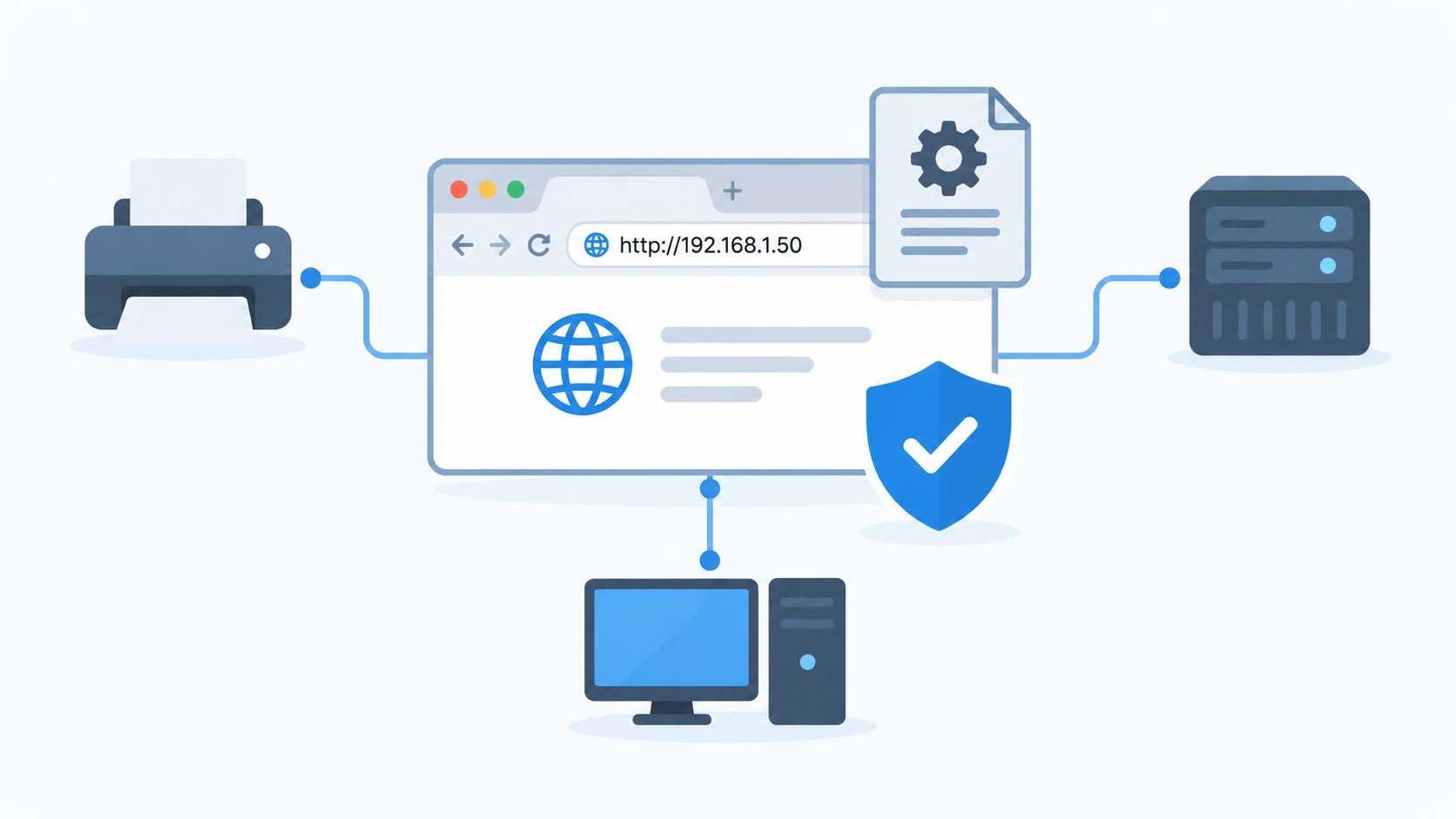
Modern web browsers such as Google Chrome and Microsoft Edge have introduced additional security restrictions that control how websites communicate with devices and services on a local network. While these protections help prevent unauthorized access to internal network resources, they can also interfere with legitimate business applications that depend on connections to local servers, printers, and other network endpoints. For IT administrators managing Windows environments, Group Policy provides a centralized method to allow trusted websites and their subdomains to make these connections without disabling browser security protections globally. This guide explains how to install the necessary administrative templates (ADMX), configure Local Network Access policies for Chrome and Microsoft Edge, and deploy the settings across domain-joined computers.
What are ADMX and ADML files?
ADMX (Administrative Template XML) and ADML (Administrative Template Language) files are used by Windows Group Policy to define and display configurable settings for Windows components and third-party applications, such as Google Chrome and Microsoft Edge.
These files allow IT administrators to manage application settings centrally through the Group Policy Management Editor without manually modifying registry entries on individual computers.
-
ADMX files: Contain the technical definitions of Group Policy settings, including available configuration options, supported operating systems, and the registry keys and values used to apply those settings. These files are language-neutral.
-
ADML files: Contain language-specific text associated with ADMX policies, including policy names, descriptions, and interface labels. For example, the
en-USfolder contains English-language ADML files.
Where Are These Files Stored?
By default, Windows stores administrative templates in:
C:\Windows\PolicyDefinitions
Language-specific ADML files are stored in their corresponding language folders, such as:
C:\Windows\PolicyDefinitions\en-US
In Active Directory environments, administrators can also use a Group Policy Central Store, which provides a shared location for administrative templates across domain controllers:
\\yourdomain.com\SYSVOL\yourdomain.com\Policies\PolicyDefinitions
Why Are They Needed for Google Chrome?
Windows does not include Google Chrome’s administrative templates by default. Installing Google’s ADMX and ADML files makes Chrome-specific settings available in the Group Policy Management Editor.
For example, these templates expose the Local Network Access settings, allowing administrators to specify which websites are permitted to make requests to local network endpoints.
Important: ADMX and ADML files do not directly enforce policies. They define how settings appear and are configured in the Group Policy editor. The policies themselves are enforced when the corresponding Group Policy settings are applied to targeted computers or users.
1) Download the Chrome Enterprise bundle
- Go to Google’s Chrome Browser Quick Start page and download the bundle.
https://support.google.com/chrome/a/answer/7650032 - Extract all files from the downloaded zip (example: GoogleChromeEnterpriseBundle64).
2) Copy the ADMX and ADML files into PolicyDefinitions
- Open the extracted Configuration folder.
- Open the admx folder.
- Copy google.admx and chrome.admx to your PolicyDefinitions folder (example:
C:\Windows\PolicyDefinitions). - In
Configuration\admx, open the language folder that matches your environment (example: en-US). - Copy google.adml and chrome.adml to the matching language folder (example:
C:\Windows\PolicyDefinitions\en-US).
3) Create a new Chrome baseline GPO
- Open Group Policy Management Console:
gpmc.msc - Right-click Group Policy Objects and select New.
- Name the policy Chrome – Computer Baseline (or any name you prefer).
- Right-click the new GPO and select Edit.
4) Configure the Chrome Local Network Access policy
- In the Group Policy Management Editor, go to:
Computer Configuration > Policies > Administrative Templates > Google > Google Chrome > Local Network Access settings
- Find the setting: Allow sites to make requests to local network endpoints.
- Set it to Enabled.
- Under Options, select Show and add an entry like:
[*.]YOURURLReplace YOURURL with the domain that needs local access. For example, adding [*.]vault.netvoyage.com explicitly allows vault.netvoyage.com and all subdomains to make requests to local network endpoints from within Chrome.
5) Force the policy to update
On a target machine, open Command Prompt and run:
gpupdate /forceDo the same for Microsoft Edge (GPO)
Add the equivalent policy for Edge (use the Edge policy setting, not a registry workaround).
Registry policy path (reference):
[HKEY_LOCAL_MACHINE\SOFTWARE\Policies\Microsoft\Edge\LocalNetworkAccessAllowedForUrls]Example value:
"1"="[*.]YOURURL"