
SIP Video Conferencing Calls Dropping After 15 Minutes: Causes and Solutions
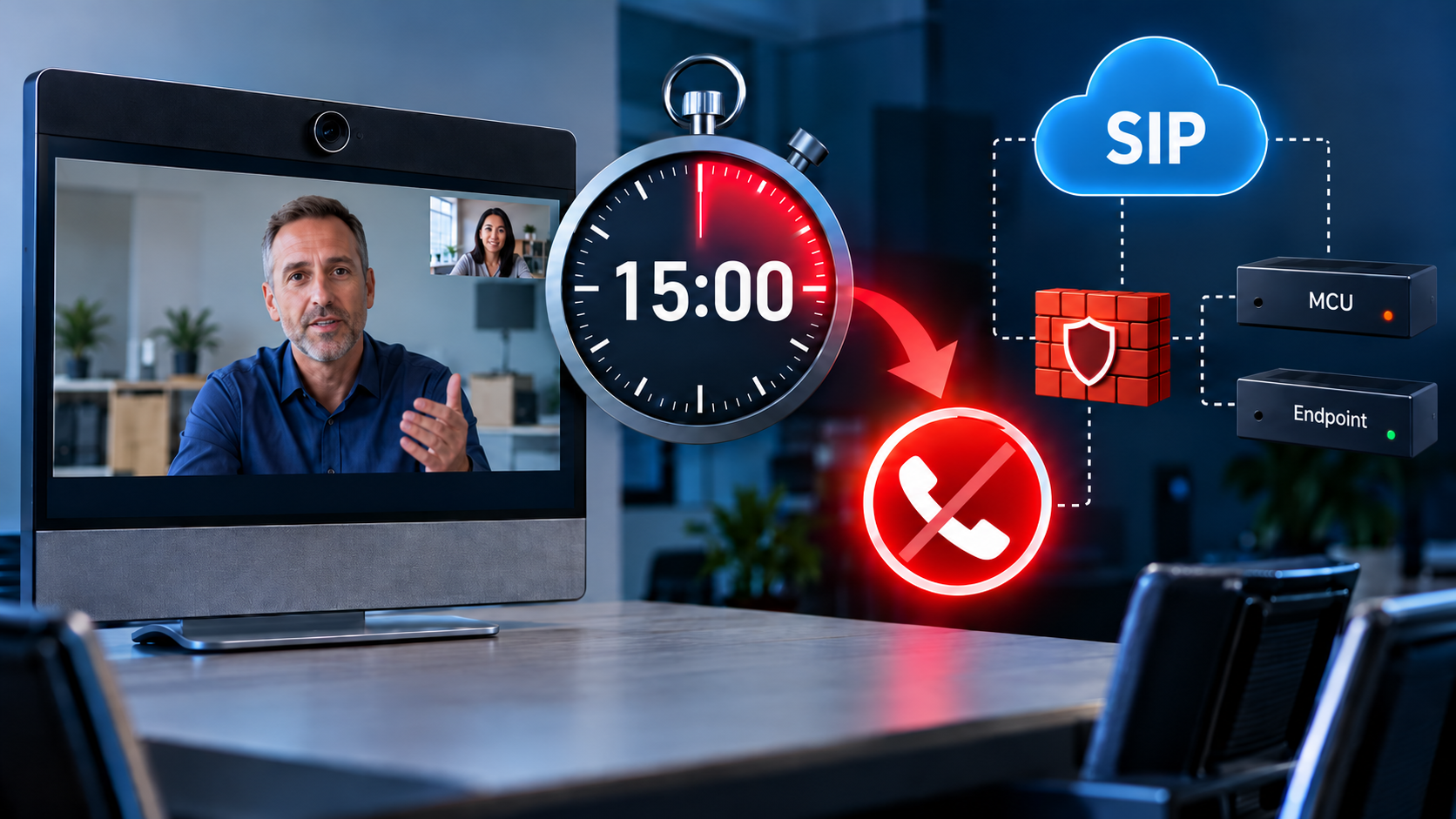
When troubleshooting SIP-based video conferencing systems, one particularly frustrating problem is a call that connects successfully but disconnects after a consistent amount of time.
In one case involving a video conferencing environment, SIP calls were dropping at approximately 15 minutes, despite establishing successfully.
Initial troubleshooting suggested that the problem was related to SIP session timers, re-INVITE messages, or network equipment preventing the session from being refreshed.
This article explains why these disconnections occur, how SIP keeps an active call established, and what to check when troubleshooting similar problems.
The Problem: SIP Calls Disconnecting After 15 Minutes
The reported issue was straightforward:
- Video conferencing calls connected successfully using SIP.
- Calls disconnected at approximately the 15-minute mark.
- The consistent timing suggested a session timeout rather than a random network interruption.
- Investigations focused on SIP re-INVITE messages, session refresh timers, firewall rules, and NAT configurations.
UPnP was already enabled on the router, so simply enabling automatic port mapping was not an adequate solution.
The key question became: Why would an otherwise functioning SIP call disconnect at almost exactly 15 minutes?
Understanding How SIP Maintains a Video Call
SIP, or Session Initiation Protocol, is a signaling protocol used to establish, manage, and terminate communication sessions, including voice and video calls.
SIP handles the instructions that control the call, while media protocols such as RTP or SRTP carry the audio and video.
When a SIP call is first established, the devices typically exchange three important messages:
- INVITE: One endpoint requests a call with another endpoint.
- 200 OK: The receiving endpoint accepts the request.
- ACK: The initiating endpoint acknowledges the successful response.
Once this exchange is completed, the call is established.
However, SIP may also need to exchange additional signaling messages while the call is active. These messages can confirm that the session is still valid or renegotiate its settings.
What Is a SIP Re-INVITE?
A SIP re-INVITE is an INVITE message sent during an existing call rather than to initiate a new call.
A re-INVITE can be used to:
- Refresh an existing SIP session.
- Change audio or video settings.
- Place a call on hold or resume it.
- Renegotiate media streams, codecs, or network addresses.
For example, during a video conference, the endpoints may need to renegotiate certain media parameters without disconnecting and starting a new call.
A successful re-INVITE exchange normally follows this sequence:
- One endpoint sends a re-INVITE.
- The receiving endpoint replies with 200 OK.
- The sending endpoint acknowledges the response with ACK.
If these messages are blocked, improperly modified, or not processed correctly, the session refresh or media renegotiation may fail.
Importantly, not every failed re-INVITE immediately terminates an existing call. The result depends on why the re-INVITE was sent and whether the SIP session subsequently expires.
Why Calls Commonly Drop Around 15 Minutes
One of the most important settings to investigate is the SIP Session-Expires Timer.
This timer determines how long a SIP session can remain valid without being successfully refreshed.
A commonly used session expiration value is:
Session-Expires: 1800This represents 1,800 seconds, or 30 minutes.
Under RFC 4028, the endpoint responsible for refreshing the session is generally expected to initiate a refresh around halfway through the negotiated session interval.
For a 30-minute session:
- 0 minutes: The SIP call is established.
- 15 minutes: A session refresh is typically attempted using re-INVITE or UPDATE.
- 30 minutes: The session expires if it has not been successfully refreshed.
If the refresh message cannot reach the other endpoint, or the response cannot return successfully, the call may disconnect because of a signaling failure or eventual session expiration.
Cisco identifies SIP timers and network device timeouts as potential causes of video calls disconnecting at fixed intervals, including 15 minutes.
This explains why a call can appear completely normal until it reaches a particular point in time.
Possible Causes of the SIP Session Refresh Failure
1. Firewall or Router Session Timeouts
Firewalls and routers track active network connections. If a connection remains idle beyond a configured timeout, the network device may remove its session information.
Even while audio and video continue flowing, the SIP signaling connection may have relatively little activity.
If a firewall closes that connection before the next SIP refresh, subsequent signaling messages may fail.
Recommended Solution:
Check the firewall’s TCP or UDP session timeout settings for the SIP signaling traffic.
Ensure that the signaling connection can remain available for the required session refresh interval. Where supported, appropriate signaling keepalive mechanisms can help maintain the connection.
The exact setting depends on the firewall, transport protocol, and video conferencing equipment.
2. SIP ALG or SIP Inspection Interference
SIP ALG (Application Layer Gateway) is a feature found in many routers and firewalls.
Its purpose is to inspect SIP traffic and, when necessary, modify network address information so calls can pass through NAT.
However, SIP ALG can sometimes interfere with devices that already handle NAT traversal themselves.
This can cause problems such as:
- Incorrectly modified SIP headers.
- Re-INVITE messages failing to reach their destination.
- ACK messages being blocked or misdirected.
- Unexpected changes to media IP addresses or ports.
Recommended Solution:
Determine whether SIP ALG or SIP inspection is enabled on the firewall.
If packet captures indicate that the firewall is improperly modifying signaling, test disabling SIP ALG for the affected communication path, following the equipment manufacturer’s recommendations.
Be aware that disabling SIP ALG may also remove automatic media port handling, so the appropriate firewall rules and NAT configuration must remain in place.
3. NAT or Incorrect Firewall Port Configuration
NAT (Network Address Translation) allows devices using private IP addresses to communicate with systems outside their local network.
If the NAT or firewall configuration is incorrect, the initial call might succeed while subsequent signaling messages fail.
SIP commonly uses these signaling ports:
| Port | Typical Purpose |
|---|---|
| 5060 TCP/UDP | SIP signaling |
| 5061 TCP | SIP signaling over TLS |
These are commonly used ports, not universal requirements.
The audio and video streams generally use additional UDP ports determined by the endpoint or conferencing platform.
Recommended Solution:
Review the manufacturer’s network requirements and verify that:
- SIP signaling can travel in both required directions.
- NAT maintains correct address and port mappings.
- Return signaling traffic is permitted.
- The appropriate media port ranges are allowed.
- Firewalls are not modifying SIP headers incorrectly.
Opening ports unnecessarily is not recommended. Limit access to the required protocols, addresses, and destinations.
Also, enabling UPnP does not guarantee that all required SIP signaling or session refresh messages will pass successfully.
4. SIP Session Timer Mismatch
The two endpoints, or an intermediary SIP server, may not agree on the session refresh configuration.
Important SIP settings include:
- Session-Expires: The negotiated expiration period for the session.
- Min-SE: The minimum acceptable session interval.
- Refresher: Identifies which endpoint is responsible for refreshing the session.
For example:
Session-Expires: 1800;refresher=uacThis indicates a 30-minute session interval, with the User Agent Client (UAC) responsible for refreshing the session.
If the designated endpoint fails to refresh the session, or if another system rejects the refresh request, the call can eventually terminate.
Recommended Solution:
Check session timer settings on the endpoints, SIP servers, and any associated call management platform.
For Cisco Unified Communications Manager (CUCM), a relevant setting is commonly found under:
System > Service Parameters > Cisco CallManager Service > SIP Session Expires Timer
The exact interface and availability of settings vary by product and software version.
Adjust session timers only after determining why the refresh is failing. Increasing the timer may delay the problem without correcting its underlying cause.
5. Endpoint Firmware or SIP Compatibility Issues
SIP implementations can differ between manufacturers and software versions.
Older firmware may contain issues affecting:
- SIP session refreshes.
- Re-INVITE handling.
- Media renegotiation.
- Call signaling through SIP proxies and gateways.
Recommended Solution:
Check the firmware versions of the affected conferencing devices and review the manufacturer’s release notes for SIP-related fixes.
If possible, compare a working endpoint against an affected endpoint, paying particular attention to differences in firmware and SIP configuration.
Troubleshooting: How to Identify the Cause
The most reliable way to troubleshoot this problem is to determine what happens to the SIP signaling immediately before the call disconnects.
Step 1: Confirm the Disconnect Interval
Establish a test call and record exactly how long it remains connected.
Check whether the call consistently disconnects at 5, 15, 30, or another fixed number of minutes.
A repeatable interval is an important clue because it may correspond to a configured timer or timeout.
Step 2: Review SIP Session Timer Settings
Check the negotiated session settings on the relevant endpoints and SIP infrastructure.
Pay particular attention to the Session-Expires header and which endpoint has been assigned the refresher role.
Step 3: Capture SIP Traffic
Use Wireshark, endpoint diagnostic tools, or the call management system’s SIP logging capabilities.
For unencrypted SIP traffic that Wireshark can decode, a basic display filter is:
sipCapture the initial call setup and the time surrounding the expected disconnect.
Look for these messages:
INVITE200 OKACKUPDATEBYE
Determine whether the expected re-INVITE or UPDATE was sent and whether the receiving endpoint responded.
When SIP uses TLS encryption, the packet contents may not be visible in a standard capture. Endpoint or server SIP logs may be necessary.
Step 4: Determine Where the SIP Exchange Fails
Ideally, collect signaling logs from both ends of the connection.
For example:
- Re-INVITE sent but not received: Investigate routing, firewall rules, NAT, and SIP inspection.
- Re-INVITE received but no response sent: Investigate endpoint processing, firmware, and SIP configuration.
- 200 OK sent but never received by the initiator: Investigate the return network path.
- Refresh explicitly rejected: Review the SIP response code and relevant configuration.
- BYE received: Identify which device generated it and why.
This approach helps identify whether the problem originates with the endpoint, network, or conferencing infrastructure.
Step 5: Correct the Identified Problem
Depending on what the logs reveal, the resolution may involve:
- Correcting a firewall or NAT timeout that prematurely closes SIP signaling connections.
- Disabling problematic SIP ALG or SIP inspection where appropriate.
- Adjusting firewall rules to allow the required SIP signaling and media traffic.
- Correcting incompatible SIP session timer settings.
- Updating firmware or correcting endpoint SIP configurations.
Make one controlled change at a time so that the actual cause can be identified.
Step 6: Verify the Resolution
After implementing a fix, perform a test call that lasts significantly longer than the original disconnect interval.
For a call previously dropping at 15 minutes, a 45- to 60-minute test is a useful starting point.
Confirm that audio and video continue functioning and that session refreshes complete successfully.
If applicable, also test content sharing, call hold/resume, and other functions that can cause media renegotiation.
Additional Consideration: MCU Keepalive and Media Renegotiation
During the original investigation, additional notes identified a possible five-minute keepalive issue between the MCU (Multipoint Control Unit) and the conferencing client.
An MCU is a conferencing component that manages or combines media from multiple participants.
The notes also identified a possible inability to renegotiate media streams during the conference.
This is worth investigating separately from the 15-minute SIP session refresh problem.
A video conferencing system may experience problems not only with the SIP signaling session but also with the negotiation of its audio and video streams.
When reviewing logs, check whether media renegotiation requests were completed and whether the media streams continued flowing afterward.
A signaling issue, media negotiation failure, and network timeout can produce similar symptoms but require different corrective actions.