
TCP/IP vs. WSD Printer Ports: Differences, Setup, and Troubleshooting
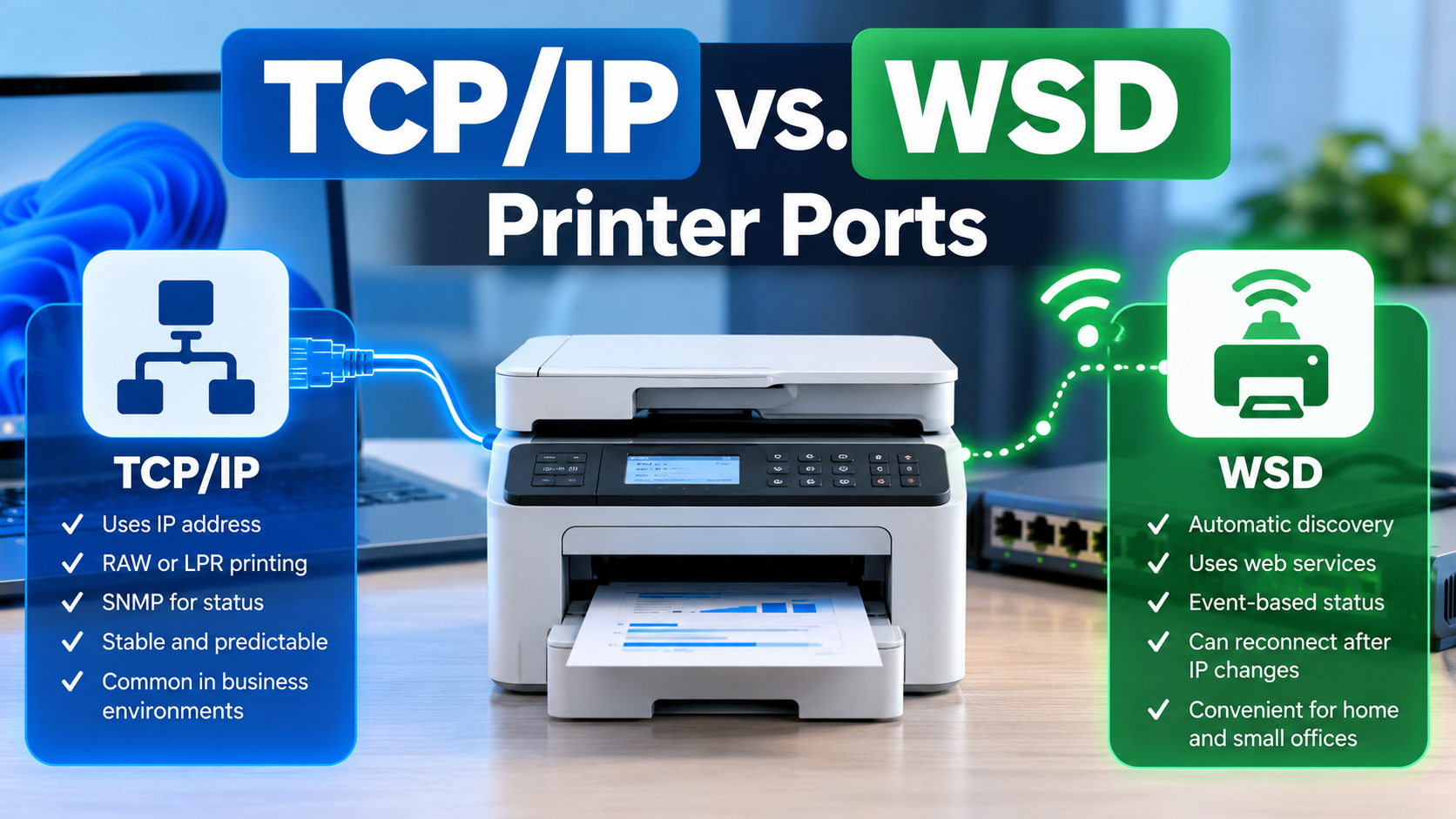 When installing a network printer in Windows, you may notice two different types of printer ports: Standard TCP/IP Port and WSD Port.
Both allow a computer to communicate with a printer over a network, but they work differently when discovering printers, managing connections, sending print jobs, and reporting printer status.
Understanding these differences can help troubleshoot printers that unexpectedly go offline, disappear from Windows, or stop responding to print jobs.
What Is a TCP/IP Printer Port?
A Standard TCP/IP Printer Port allows Windows to communicate with a network printer using its IP address or hostname.
TCP/IP stands for Transmission Control Protocol/Internet Protocol, the networking technologies that allow devices to communicate across local networks and the internet.
When configuring a Standard TCP/IP printer port, Windows typically connects to a specific printer address.
For example:
- Printer IP address: 192.168.1.50
- Printing protocol: RAW
- TCP destination port: 9100
When you send a document to print, Windows sends the print data to the printer using the configured address and protocol.
The Windows component responsible for handling this communication is called the Standard TCP/IP Port Monitor, also known as TCPMON.
Depending on its configuration, TCPMON supports:
- RAW printing: Commonly uses TCP port 9100 to transmit print data directly to the printer.
- LPR printing: Uses the Line Printer Remote protocol, typically over TCP port 515.
- SNMP monitoring: Uses Simple Network Management Protocol to obtain information about printer status, such as paper availability or device errors.
Advantages of TCP/IP Printer Ports
- Predictable connections: Windows communicates with a known printer address rather than relying on automatic network discovery.
- Easier troubleshooting: IT technicians can test whether the printer’s IP address and required ports are reachable.
- Centralized management: Administrators can configure printer connections consistently across multiple computers or print servers.
- Controlled deployments: Administrators can determine which printers users should access.
- Compatibility: Standard TCP/IP printing is supported by many network printers, including older models.
Disadvantages of TCP/IP Printer Ports
The most common limitation involves IP address changes.
If a printer is configured using 192.168.1.50, but its address changes to 192.168.1.75, the existing TCP/IP printer port may continue attempting to communicate with the old address.
As a result, the printer may appear offline or print jobs may fail.
This is why business environments commonly use DHCP reservations, appropriately configured static IP addresses, or stable DNS hostnames to maintain reliable printer connections.
What Is a WSD Printer Port?
WSD (Web Services for Devices) is a Microsoft-supported technology that allows compatible devices to be discovered, configured, and managed over a network.
WSD was designed to make connecting network devices easier by reducing the need for manual configuration.
For example, when a compatible printer is connected to a network, Windows may discover it automatically and offer to install it without requiring the user to know its IP address.
Windows manages these connections through the WSD Port Monitor, also called WSDMON.
Unlike a traditional TCP/IP printer configuration that commonly relies on a specific IP address, WSD uses web services to identify and communicate with compatible devices.
WSD still uses TCP/IP networking. It does not replace TCP/IP itself.
How WSD Works
WSD provides several capabilities:
1. Automatic Printer Discovery
WSD uses WS-Discovery to locate compatible printers on the network.
This allows Windows to discover printers without requiring users to manually enter their IP addresses.
2. Device Identification and Reconnection
WSD identifies printers through web services rather than relying exclusively on a manually configured IP address.
If a printer’s IP address changes, WSD may be able to locate it again without requiring the printer port to be manually updated.
However, this depends on successful network discovery and communication.
3. Printer Status Notifications
WSD can receive event-based updates from compatible printers.
These notifications may include:
- Paper jams
- Empty paper trays
- Low or empty toner
- Printer errors
- Device availability changes
Traditional TCP/IP printing can also report printer status through SNMP, but it generally obtains that information by querying the printer rather than subscribing to WSD events.
4. Print Job Management
WSD supports web service operations for submitting print jobs and obtaining information about them.
This can provide more structured communication about print job status and device readiness.
The capabilities available depend on the printer’s implementation.
Advantages of WSD Printer Ports
- Printers can be automatically discovered.
- Installation often requires less manual configuration.
- Device reconnection may work even after an IP address changes.
- Printers can provide event-based status notifications.
- Convenient for home networks and small offices.
Disadvantages of WSD Printer Ports
- Depends on network discovery working correctly.
- Discovery traffic may be restricted across VLANs or separate network segments.
- Firewalls or security configurations can interfere with device discovery.
- Troubleshooting may be less straightforward than checking a specific TCP/IP destination.
- Requires compatible printer hardware and WSD support.
These limitations do not mean WSD is inherently unreliable, but its discovery-based design can introduce additional considerations in managed environments.
TCP/IP vs. WSD Printer Ports: Comparison
| Feature | Standard TCP/IP Port | WSD Port |
|---|---|---|
| Printer discovery | Usually configured using a known IP address or hostname | Supports automatic network discovery |
| Initial setup | Often requires manual configuration | Can simplify printer installation |
| IP address changes | May require updating the port if using a fixed IP address | Can rediscover a printer after an address change |
| Print job delivery | Commonly uses RAW 9100 or LPR | Uses WSD web service operations |
| Printer status | Can use SNMP for status monitoring | Supports event-based status notifications |
| Network requirements | Requires connectivity to the configured printer address and protocol | Requires connectivity and functioning WSD services |
| Troubleshooting | Often easier to diagnose using IP addresses and port tests | May require investigating discovery and web service communication |
| Typical applications | Managed networks, legacy printers, controlled deployments | Home networks, small offices, automatic setup |
Which Printer Port Should You Use?
There is no single printer port that is best for every situation.
The appropriate choice depends on the network environment, printer capabilities, security requirements, and how the organization manages printing.
Home Networks
For home users, WSD can be convenient.
A new printer can often be discovered and installed without manually configuring network information.
If the printer changes IP addresses, WSD may be able to reconnect automatically.
For users who want printing to work with minimal configuration, this can be useful.
Business and Corporate Networks
In business environments, predictable printer connections and controlled deployments are often more important than automatic discovery.
For printers using traditional Windows printing methods, Standard TCP/IP ports are often a practical choice, particularly when devices have consistent IP addresses or DNS names.
For example, consider an organization with 50 network printers across several offices.
Rather than having employees discover printers individually, IT administrators may want to:
- Assign stable addresses to printers.
- Deploy printers based on office or department.
- Manage print queues centrally.
- Restrict access to authorized users.
- Maintain standardized printer configurations.
Using Standard TCP/IP ports on a print server can support this type of configuration.
However, users connected to a shared print queue typically do not need their own direct TCP/IP port to the printer. Their computers communicate with the print server, which manages the printer connection.
What About IPP Printing?
Although TCP/IP and WSD are the focus of this comparison, modern Windows environments have another important option: IPP (Internet Printing Protocol).
IPP supports modern print management capabilities and is part of Microsoft’s Windows Ready Print architecture.
Windows Ready Print is designed to work with compatible printers without requiring traditional manufacturer-specific drivers.
Secure IPP configurations, such as IPPS, can also protect printing communications using TLS.
For a new printer deployment, particularly in an organization adopting modern Windows printing technologies, IPP deserves consideration alongside traditional TCP/IP and WSD connections.
How to Check Whether a Printer Uses TCP/IP or WSD in Windows 11
To determine which port type a printer is currently using:
- Open Settings.
- Navigate to Bluetooth & devices > Printers & scanners.
- Select the printer you want to inspect.
- Open Printer properties.
- Select the Ports tab.
- Locate the port with the checkmark next to it.
The selected port indicates how Windows is configured to communicate with the printer.
For example:
IP_192.168.1.50typically indicates a Standard TCP/IP port.WSD-xxxxxxxx-xxxx-xxxx-xxxx-xxxxxxxxxxxxindicates a WSD port.
The exact port names may vary.
You can also inspect configured printers using PowerShell:
Get-Printer | Select-Object Name, PortName, DriverNameThis displays the installed printers, their port names, and their associated drivers.
How to Change a Printer from WSD to TCP/IP
If a WSD printer repeatedly appears offline or experiences discovery-related connection problems, changing it to a Standard TCP/IP port may help.
Before proceeding, confirm the printer’s IP address and verify that it supports the printing protocol you intend to configure.
Steps
- Open Settings > Bluetooth & devices > Printers & scanners.
- Select the affected printer.
- Open Printer properties.
- Select the Ports tab.
- Click Add Port.
- Select Standard TCP/IP Port.
- Click New Port.
- Enter the printer’s IP address or hostname.
- Complete the configuration wizard.
- Ensure the newly created port is selected.
- Click Apply, then OK.
- Print a test page.
For printers supporting RAW printing, the port is commonly configured to use TCP port 9100.
Check the manufacturer’s documentation if the printer requires a different protocol or port.
Important: Changing the printer port does not correct an underlying network connectivity problem. If the printer is unreachable, incorrectly addressed, or blocked by a firewall, additional troubleshooting will be necessary.
In a company-managed environment, these changes may require administrator permissions or assistance from IT.
Troubleshooting Common TCP/IP and WSD Printer Problems
Problem 1: Printer Shows Offline After an IP Address Change
Possible cause: A Standard TCP/IP port is configured with an address that the printer no longer uses.
Solution:
- Determine the printer’s current IP address.
- Compare it with the address configured in Windows.
- Update the printer port if necessary.
- Configure a DHCP reservation or another suitable addressing method to prevent unexpected changes.
Problem 2: WSD Printer Is Not Being Discovered
Possible cause: WSD discovery traffic is being blocked or is not reaching the printer.
WSD uses WS-Discovery, which commonly relies on UDP port 3702 for multicast discovery.
This can become important when printers and computers are located on different network segments or VLANs.
Solution:
- Confirm that the printer and computer have the required network connectivity.
- Check whether network discovery is permitted.
- Review firewall rules and VLAN configurations.
- Verify that WSD is enabled on the printer.
- Consider a supported TCP/IP or IPP connection if discovery cannot be made reliable.
Problem 3: TCP/IP Printer Is Reachable but Still Shows Offline
Possible cause: The printer may be responding to basic network requests while Windows cannot retrieve its expected status information.
For example, some Standard TCP/IP configurations use SNMP to monitor printer availability.
If the printer does not respond to SNMP queries, its status may be reported incorrectly.
Solution:
- Verify that the printer supports the configured protocol.
- Check the port’s SNMP settings.
- Confirm that SNMP is permitted by the network and the printer.
- Correct any mismatched SNMP configuration.
Disabling SNMP status monitoring may be a useful diagnostic test in some environments, but it should not be treated as a universal solution because it can remove useful printer status reporting.
Problem 4: Printer Responds to Ping but Does Not Print
A successful ping confirms that the device responded to an ICMP request. It does not prove that the printing protocol is available.
For a printer configured to use RAW printing on TCP port 9100, you can test connectivity using PowerShell:
Test-NetConnection 192.168.1.50 -Port 9100Replace the example IP address with the printer’s actual address.
If the result shows:
TcpTestSucceeded : TrueThe computer was able to establish a TCP connection to port 9100.
If the result is False, investigate the printer address, network routing, firewall restrictions, and whether RAW printing is enabled.
This test only applies when TCP port 9100 is the intended printing destination. It does not test WSD, LPR, or IPP printing.
Even a successful connection does not guarantee that the printer driver or print job itself is functioning correctly.