
Understanding Cisco IOS Software: Versions, Features, Image Names, and Compatibility
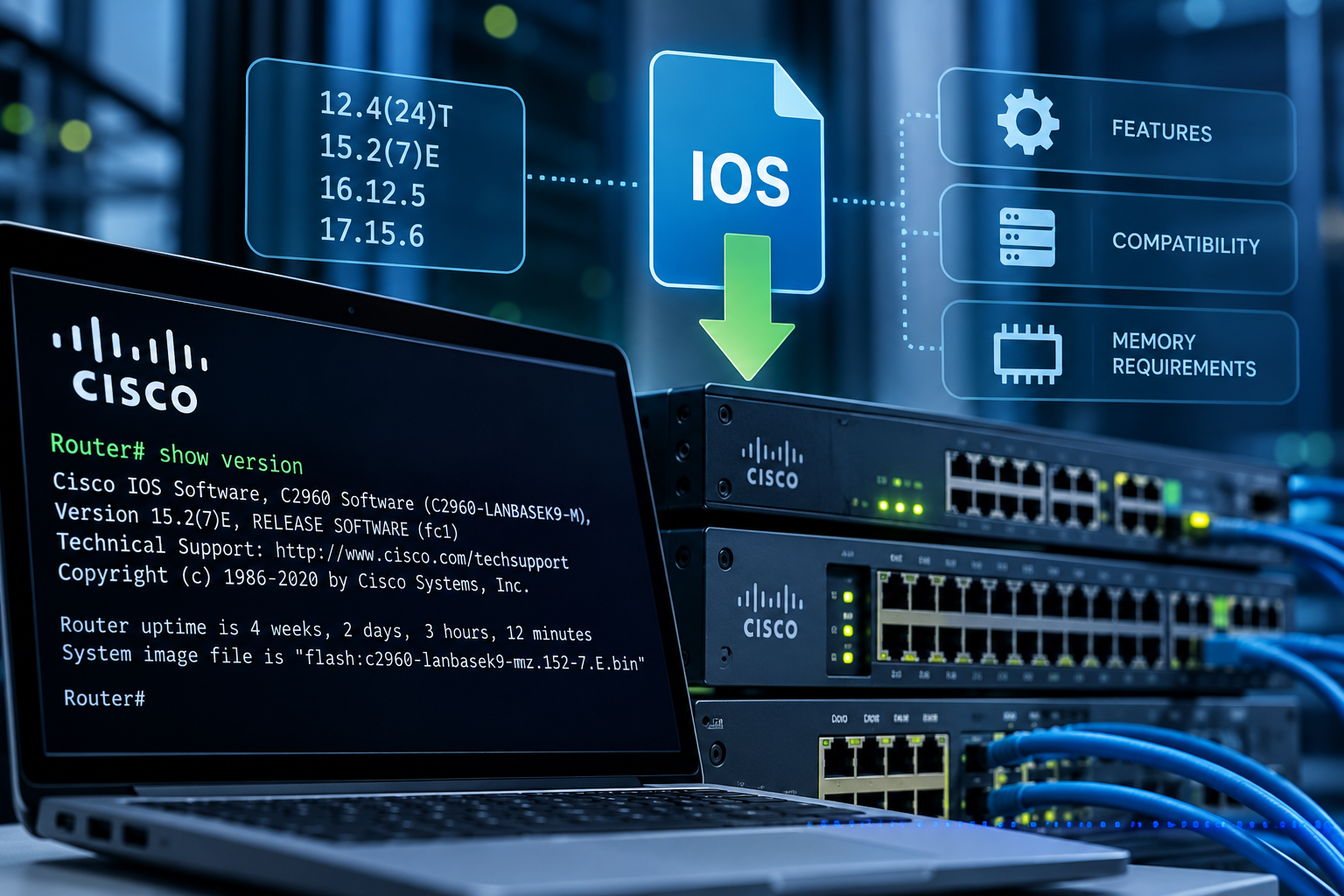
Introduction
Cisco IOS (Internetwork Operating System) is the operating system used by many Cisco routers and switches. It provides the software functionality necessary for network devices to communicate, route traffic, manage network connections, and support various networking protocols.
Cisco IOS is primarily managed through a command-line interface (CLI), allowing network administrators to configure devices, monitor performance, troubleshoot problems, and manage software.
However, not every Cisco IOS software release is compatible with every Cisco device. Different releases support different hardware platforms, networking features, and memory configurations.
Choosing an incorrect software image can result in missing functionality, installation failures, or a device that cannot boot properly.
Understanding Cisco IOS software versions, image naming conventions, feature sets, and memory requirements is therefore essential when maintaining or upgrading Cisco networking equipment.
Important: This article explains traditional Cisco IOS software conventions, including those used in IOS 12.x releases. It also distinguishes these older conventions from modern Cisco IOS XE software. Some of the legacy platforms, feature sets, and release classifications discussed below are no longer used on current Cisco equipment.
1. How to Choose the Correct Cisco IOS Software Release
Before selecting or upgrading a Cisco IOS software image, three primary factors must be considered:
- Hardware compatibility: Does the software support the specific Cisco device and its installed hardware?
- Feature support: Does the software contain the networking capabilities required by the environment?
- Software release version: Is the release appropriate for the device, and does it provide the necessary fixes and support?
Memory requirements, storage capacity, licensing, and the software’s support status must also be considered.
Hardware Compatibility
The first step is confirming that the desired IOS release supports the hardware on which it will run.
Different Cisco router models, interface modules, and hardware revisions may require specific minimum IOS versions.
For example, Cisco’s original documentation identifies IOS versions 12.1(5)E2 and 12.2(7)T as minimum supported releases for the PA-GE Gigabit Ethernet port adapter on the Cisco 7100 platform.
This is a historical example illustrating that installing hardware may require a corresponding software upgrade.
Before selecting an IOS release, identify:
- The exact Cisco router or switch model.
- Installed interface cards or expansion modules.
- Hardware revision and platform requirements.
- Currently installed IOS software version.
- Minimum supported software version for the hardware.
Cisco’s hardware documentation and software compatibility information should be consulted to ensure that the selected release supports the entire hardware configuration.
Feature Support
Cisco IOS software releases can include different networking capabilities.
Historically, Cisco distributed separate IOS images containing different feature sets. These feature sets determined which networking protocols and services were available.
For example, older Cisco IOS feature sets could support combinations of:
- IP routing
- IPX (Internetwork Packet Exchange)
- AppleTalk
- ISDN
- BGP, OSPF, RIP, and EIGRP routing
- WAN connectivity
- Remote access services
- Firewall and encryption capabilities
Some features were available only in specific software packages.
For example, an older Cisco router requiring both IP and IPX support might need a Desktop or more comprehensive IOS feature set rather than a basic IP-only image.
Before upgrading, determine which features are currently used and confirm that the replacement software supports them.
On newer Cisco equipment, feature availability may also depend on software licensing rather than simply installing a different IOS image.
2. Understanding Cisco IOS Software Version Numbers
Traditional Cisco IOS releases commonly followed this naming format:
A.B(C)DEach component identifies a particular part of the software release.
| Component | Meaning |
|---|---|
| A | Major version number |
| B | Release number within the major version family |
| C | Maintenance release number |
| D | Optional letter identifying a special release train or extension |
For example:
12.2(7)TThis version number can be broken down as follows:
| Component | Value | Explanation |
|---|---|---|
| A.B | 12.2 | Major software release family |
| C | 7 | Maintenance release |
| D | T | Special release train |
The T designation historically identified a technology-focused release train that introduced additional features or hardware support.
Maintenance releases generally provide bug fixes and corrections to existing software. However, a higher release number should not automatically be interpreted as the best or most stable software choice.
Administrators should review the release notes and known defects before selecting a version.
Note: This naming format applies to traditional IOS releases. Modern Cisco IOS XE uses different release naming conventions, such as 17.15.6.
3. Cisco IOS Software Release Status
Older Cisco IOS software releases were classified using deployment status designations.
These classifications helped network administrators understand the intended maturity and deployment suitability of a software release.
| Status | Name | Explanation |
|---|---|---|
| ED | Early Deployment | Introduced new features or hardware support. These releases could contain functionality not yet available in more established releases. |
| LD | Limited Deployment | A major release in its earlier deployment phase, before reaching the General Deployment milestone. |
| GD | General Deployment | A release that Cisco considered suitable for broad deployment based on testing, customer feedback, and field experience. |
| DF | Deferred | A release withdrawn or deferred because of known defects. Such releases should not be selected for deployment. |
Early Deployment (ED)
Early Deployment releases provided access to newer features, technologies, and hardware support.
These releases were useful when a particular feature was required but had not yet become available in a more established release.
However, introducing newer functionality also meant that these releases could present additional operational risks.
Limited Deployment (LD)
Limited Deployment represented an earlier phase in the lifecycle of certain major IOS releases.
The software was available for deployment but had not yet reached the General Deployment milestone.
General Deployment (GD)
General Deployment releases were considered suitable for broader production deployment.
Cisco evaluated factors such as reported defects, field experience, testing, and customer feedback when determining whether a release qualified for this designation.
Historically, GD releases were often preferred for production environments when their features and hardware support met the network’s requirements.
Deferred (DF)
Deferred releases were software versions that Cisco withdrew because of known defects.
A deferred release should not be selected for a new installation.
Modern consideration: ED, LD, GD, and DF are historical Cisco IOS release classifications. They should not be used as the primary method for selecting modern IOS XE releases. For current equipment, consult Cisco’s platform-specific recommended releases, release notes, security advisories, and support documentation.
4. Checking the Cisco IOS Version Installed on a Device
Before upgrading a Cisco router or switch, determine which IOS version is currently installed.
The most common command is:
Router# show versionThe show version command displays information about the running software and hardware.
Depending on the platform, this information may include:
- Cisco IOS software version
- Device model and processor
- System image filename
- Installed memory
- System uptime
- Boot information
- Configuration register settings
Example: Traditional Cisco IOS Output
An older Cisco 2500 router might display a line similar to:
IOS (tm) 2500 Software (C2500-JS-L),
Version 12.0(9), RELEASE SOFTWARE (fc1)
From this output, we can identify:
2500: The Cisco router platform.
C2500-JS-L: The IOS image identifier, containing information about the platform, feature set, and image type.
12.0(9): The installed IOS software version.
In this example, JS identifies the historical Enterprise Plus feature set.
Understanding the image name can help administrators determine which software capabilities are installed and identify compatible replacement images.
5. Understanding Cisco IOS Memory Requirements
Before installing a different IOS image, verify that the router has sufficient memory to support it.
Two important types of memory on traditional Cisco routers are:
DRAM (Dynamic Random Access Memory): Used for executing software and maintaining the router’s operational data.
Flash memory: Nonvolatile storage used to store IOS software images and other files.
A software image must fit within the available storage capacity, and the router must have enough RAM to execute it.
Checking Installed DRAM
On older Cisco devices, the show version command can provide information about processor memory and packet memory.
For example:
cisco RSP4 (R5000) processor
with 65536K/2072K bytes of memory
The meaning of these two memory values depends on the router’s architecture.
Example 1: Separate DRAM and Packet Memory
Some older Cisco platforms, including the 4000, 4500, 4700, and 7500 series, used separate memory for system operations and packet processing.
Example:
65536K/2072K bytes of memoryIn this case:
- 65536K represents 64 MB of processor DRAM.
- 2072K represents separate packet memory.
Because the packet memory is physically separate, the router has 64 MB of processor DRAM for the purpose of checking the IOS image’s DRAM requirement.
Example 2: Shared DRAM and Packet Memory
Other older Cisco platforms allocated a portion of their total DRAM to packet memory.
For example, a Cisco 2611 might display:
cisco 2611 (MPC860) processor
with 29696K/3072K bytes of memory
In this configuration:
- 29696K is allocated to processor memory.
- 3072K is allocated to packet memory.
Adding the two values gives:
29696K + 3072K = 32768KThe router therefore has 32 MB of total DRAM.
This distinction is important because reading only the first number could lead to an incorrect assessment of the device’s installed memory.
Note: These interpretations apply to the legacy Cisco platforms described above. Memory reporting varies by hardware architecture, so administrators should consult the documentation for their specific device rather than applying this calculation universally.
6. Checking Available Flash Memory
A router may have sufficient DRAM to run an IOS image but still lack the flash storage required to hold it.
On older Cisco routers, flash memory can be examined using:
Router# show flashAn example of the output is:
System flash directory:

File   Length    Name/status
1      8407884   c2600-io3s56i-mz.121-6

[8407948 bytes used,
 8369268 available,
 16777216 total]
This output indicates:
| Measurement | Approximate Value |
|---|---|
| Total flash memory | 16 MB |
| Used flash memory | 8.4 MB |
| Available flash memory | 8.3 MB |
In this example, approximately half of the available flash storage is occupied by the installed IOS image.
If a replacement image exceeds the available space, the administrator must determine whether the device supports additional storage or whether existing files can safely be removed.
Another option may be selecting a smaller compatible IOS image.
However, software selection must still account for hardware support, required features, and security updates.
On many newer Cisco platforms, a command such as dir flash: or dir bootflash: can be used to examine the relevant filesystem.
Warning: Do not delete an existing IOS image or package simply to create free space without first verifying how the device boots and establishing a recovery plan.
7. Understanding Cisco IOS Software Image Naming Conventions
Traditional Cisco IOS software image filenames provide information about the intended hardware platform, supported feature set, and how the software executes.
A common legacy naming convention follows this structure:
platform-features-typeFor example:
c4000-ps-mzThe filename consists of three primary sections:
| Section | Example | Purpose |
|---|---|---|
| Platform | c4000 | Identifies supported hardware |
| Features | ps | Identifies the software feature set |
| Type | mz | Identifies how the image runs and whether it is compressed |
Understanding these components helps administrators identify the purpose of an IOS image without needing to install it.
Platform Identification
The first section of the filename identifies the supported Cisco hardware platform.
Examples from traditional IOS releases include:
| Image Prefix | Cisco Platform |
|---|---|
| as5200 | Cisco 5200 |
| c2500 | Cisco 2500 |
| c3640 | Cisco 3640 |
| c4500 | Cisco 4500 and 4700 |
| rsp | Cisco 7500 |
| c7000 | Cisco 7000 and 7010 |
For example:
c2500-js56-lThe c2500 prefix indicates that the image was designed for the Cisco 2500 platform.
An image intended for one hardware platform should not be assumed to work on a different model, even when the devices are similar.
Feature Set Identification
The second section identifies the software capabilities included in the image.
Historical Cisco IOS images used letters and combinations of letters to represent feature sets.
Examples include:
| Code | Historical Feature Description |
|---|---|
| a | APPN |
| b | AppleTalk |
| d | Desktop feature set |
| g | ISDN feature subset |
| i | IP feature subset |
| j | Enterprise feature subset |
| k | Enterprise feature set for certain high-end platforms |
| n | IPX |
| p | Service Provider |
| r | IBM networking feature option |
| s | Plus |
| x | X.25 or Frame Relay/X.25 support, depending on release |
| z | Managed modems |
| 40 | 40-bit encryption |
| 56 | 56-bit encryption |
These identifiers were associated with particular software generations, and their precise meaning could vary by platform or release.
For example:
c2500-js56-lIn this historical image name:
c2500identifies the Cisco 2500 platform.jidentifies Enterprise features.sidentifies the Plus feature set.56identifies 56-bit encryption support.lidentifies a relocatable image.
This image therefore represents a legacy Cisco 2500 Enterprise Plus software image with 56-bit encryption support.
Important: This table is a historical reference, not a complete list of Cisco IOS feature identifiers. Legacy encryption designations and protocols such as IPX and AppleTalk should not be treated as suitable choices for modern network security or design.
8. Understanding Where an IOS Image Runs and Its Compression
The final section of traditional Cisco IOS image filenames can identify how the software executes and whether the image is compressed.
The following characters were used:
| Code | Meaning |
|---|---|
| f | Executes from flash memory |
| m | Executes from RAM |
| r | Executes from ROM |
| l | Relocatable image |
| z | ZIP compressed image |
| x | MZIP compressed image |
These characters could be combined.
Example: mz
Consider the image name:
c4000-ps-mzThe final section, mz, means:
m: The image executes from RAM.z: The image is compressed.
When the router boots, the compressed image is loaded and decompressed for execution in RAM.
This allows the stored software image to occupy less space than its uncompressed form.
However, the router must still have enough working memory to execute the software after decompression.
Example: Relocatable Images
An image ending in -l identifies a relocatable image under the historical naming convention.
Relocatable images provided greater flexibility regarding their location in flash memory.
This was particularly useful on older platforms with flash memory partitioning or specific image placement requirements.
Understanding these image types can be useful when troubleshooting, maintaining, or recovering older Cisco equipment.
9. How Modern Cisco IOS XE Differs
Many modern Cisco routers and switches run Cisco IOS XE rather than the traditional IOS versions discussed in older Cisco documentation.
Although the operating systems share many familiar command-line concepts, their underlying software architecture, packaging, release numbering, and feature licensing can differ significantly.
For example, a modern Cisco Catalyst switch might use an image named:
cat9k_iosxe.17.15.06.SPA.binThis is an example of a Cisco Catalyst 9000-series IOS XE image filename, not a recommended software version for every Catalyst device.
It follows a different naming structure from legacy images such as c2500-js56-l.
Modern Release Versions
Cisco IOS XE versions can follow a numbering structure such as:
17.15.6This should not be interpreted using the older A.B(C)D release format.
Administrators should consult the release notes for their specific Cisco platform to understand available software versions, feature support, known issues, and upgrade requirements.
Install Mode and Bundle Mode
Certain Cisco IOS XE platforms support different software installation and boot methods.
Bundle Mode: The device boots using a consolidated software image, commonly a .bin file.
Install Mode: The software package is extracted into component files, and the device boots using package information typically referenced through packages.conf.
On supported platforms, Install Mode can provide advantages such as improved software maintenance and upgrade functionality.
The available modes and recommended upgrade procedures vary by device and software release.
The older IOS image naming convention should therefore not be used to determine how a modern IOS XE device must be installed or upgraded.
10. Useful Cisco IOS Commands for Checking Software Information
The following commands can help administrators gather information before planning a software change.
| Command | Purpose |
|---|---|
show version |
Displays installed software version, hardware information, and system image details. |
show flash |
Displays flash memory information on supported platforms, particularly older IOS devices. |
dir flash: |
Lists files stored in the flash filesystem on supported platforms. |
dir bootflash: |
Lists files in the bootflash filesystem where supported. |
show file systems |
Displays available filesystems and storage locations. |
show inventory |
Displays hardware inventory information on supported Cisco devices. |
show install summary |
Displays software package installation states on supported IOS XE platforms. |
Not every command is available on every Cisco device or software release.
The most useful starting point is generally:
show versionThis command identifies the running software release and provides information needed to locate the correct Cisco documentation.
11. Best Practices Before Upgrading Cisco IOS
Before performing a Cisco IOS or IOS XE software upgrade, follow a documented process.
- Identify the exact hardware. Confirm the device model, installed modules, and hardware revisions.
- Record the current configuration. Document the running software version, system image, and relevant boot settings.
- Verify software compatibility. Confirm that the target release supports the hardware and its required networking features.
- Review release notes and security advisories. Check known defects, fixed issues, security vulnerabilities, upgrade paths, and any required intermediate versions.
- Check memory and storage requirements. Ensure sufficient resources exist for the software image and the installation process.
- Confirm licensing requirements. Verify that required features will remain available after the upgrade.
- Download software from Cisco. Use the official Cisco Software Download service and verify the downloaded file’s integrity against Cisco-published checksums or signatures.
- Back up the configuration. Preserve the information required to restore the device if the upgrade fails.
- Establish a recovery procedure. Confirm the availability of console access, recovery images, and an appropriate rollback plan.
- Schedule and verify the upgrade. Perform production changes during an approved maintenance window, then confirm that interfaces, routing protocols, connectivity, and required services operate correctly.
Remember that the newest available software release is not necessarily the best release for every environment.
The appropriate choice is a vendor-supported version that satisfies hardware compatibility, feature requirements, security needs, and operational stability.