
Mac CUPS: The Local Host Printing Interface Explained
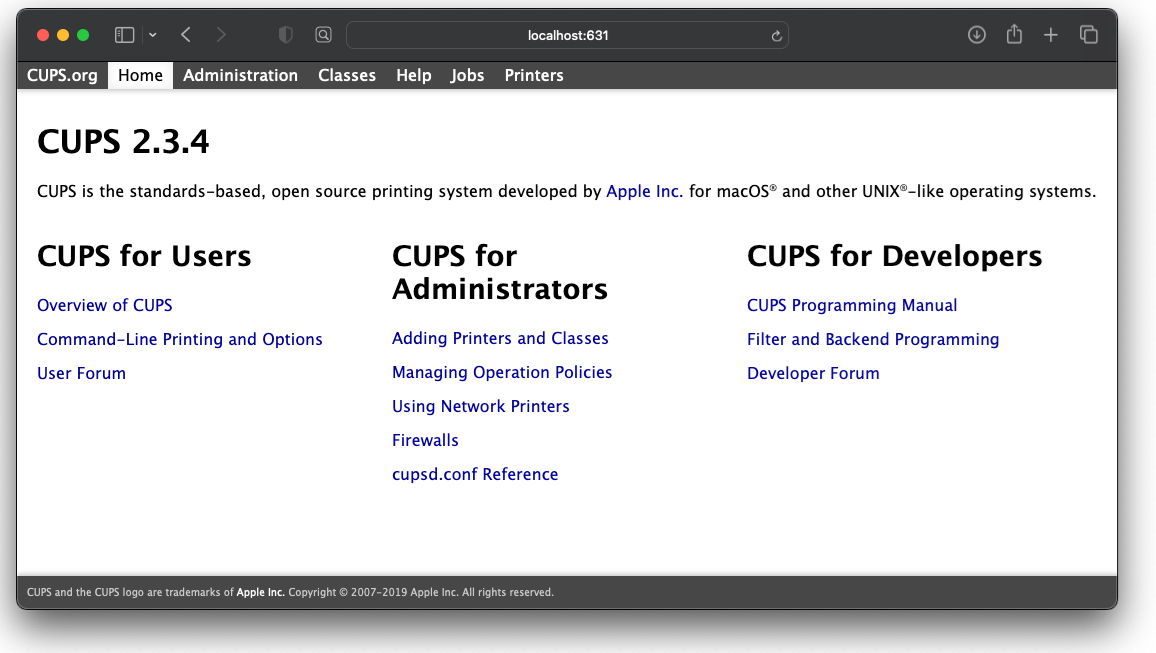
CUPS (Common UNIX Printing System) is the underlying printing subsystem used by macOS to manage printers, print queues, and print jobs. It has been part of macOS since Mac OS X 10.2 and continues to serve as the core printing framework that applications rely on to communicate with both local and network printers.
What Is CUPS?
CUPS is a standards based, open source printing system that implements the Internet Printing Protocol (IPP). On macOS, it acts as a local print server, accepting print jobs from applications and delivering them to printers over USB or the network.
CUPS consists of several core components:
- A scheduler (daemon) that manages print jobs and queues
- A filtering system that converts documents into printer compatible formats
- Support for modern printing protocols such as IPP, with legacy support for LPD and LPR
Because macOS is built on a Unix foundation, CUPS is tightly integrated into the operating system and runs continuously in the background.
How CUPS Works on macOS
When you print a document on macOS, CUPS performs the following steps:
- Receives the print job from the application
- Places the job into the appropriate printer queue
- Processes and converts the document using filters and drivers
- Sends the job to the printer using USB or network protocols such as IPP
CUPS listens on TCP port 631 and communicates using IPP. By default, administrative access to CUPS is restricted to the local machine for security reasons.
The CUPS Local Host Interface
What It Is
The CUPS local host interface is a web based administrative console served by the CUPS service. It is accessed using a web browser and allows administrators to view and manage printers, print jobs, and system settings.
The interface is available at:
http://localhost:631This interface provides visibility into printer queues, job status, configuration options, and logging that are not exposed through macOS System Settings.
Why It Is Disabled by Default
On modern versions of macOS, the CUPS web interface is often disabled by default. Apple does this to reduce the attack surface of the system, as the interface allows administrative changes to printing services.
When disabled, attempting to access the interface may result in a message indicating that the web interface is not enabled.
How to Enable and Access the CUPS Interface
To enable the CUPS web interface:
- Open Terminal
- Run the following command:
cupsctl WebInterface=yesOnce enabled, open a web browser and navigate to:
http://localhost:631You may be prompted to authenticate using your macOS username and password when performing administrative tasks.
Using CUPS for Troubleshooting
The CUPS interface is especially useful when diagnosing printing issues that cannot be resolved through standard macOS settings.
Verify Printer Registration
If a printer does not appear in macOS, check the printer list in the CUPS interface under the Printers section. If it does not appear there, it is not registered with the print system.
Inspect Print Jobs
CUPS allows you to view active, completed, and failed print jobs. Stuck or repeatedly failing jobs can be cancelled directly from the interface.
Restart or Recreate Printer Queues
Printers can be paused, resumed, deleted, or recreated. Recreating a printer queue often resolves driver mismatches or corrupted configurations.
Review Logs and Errors
CUPS maintains detailed logs that can reveal why jobs are failing. These logs can highlight driver issues, permission problems, or network communication errors.
Command Line Integration
CUPS can also be managed using command line tools such as:
lpstatto view printer and job statuslpadminto add or modify printerscupsctlto configure CUPS behavior
This makes CUPS suitable for scripting, automation, and advanced troubleshooting scenarios.
Common Issues and Notes
- If
http://localhost:631does not load, re run thecupsctl WebInterface=yescommand - Some administrative actions may require elevated privileges
- In enterprise environments, remote access to CUPS can be enabled but should be carefully secured