
Microsoft Teams On Mac (Monterey – macOS 12) – Privacy and Security Permissions
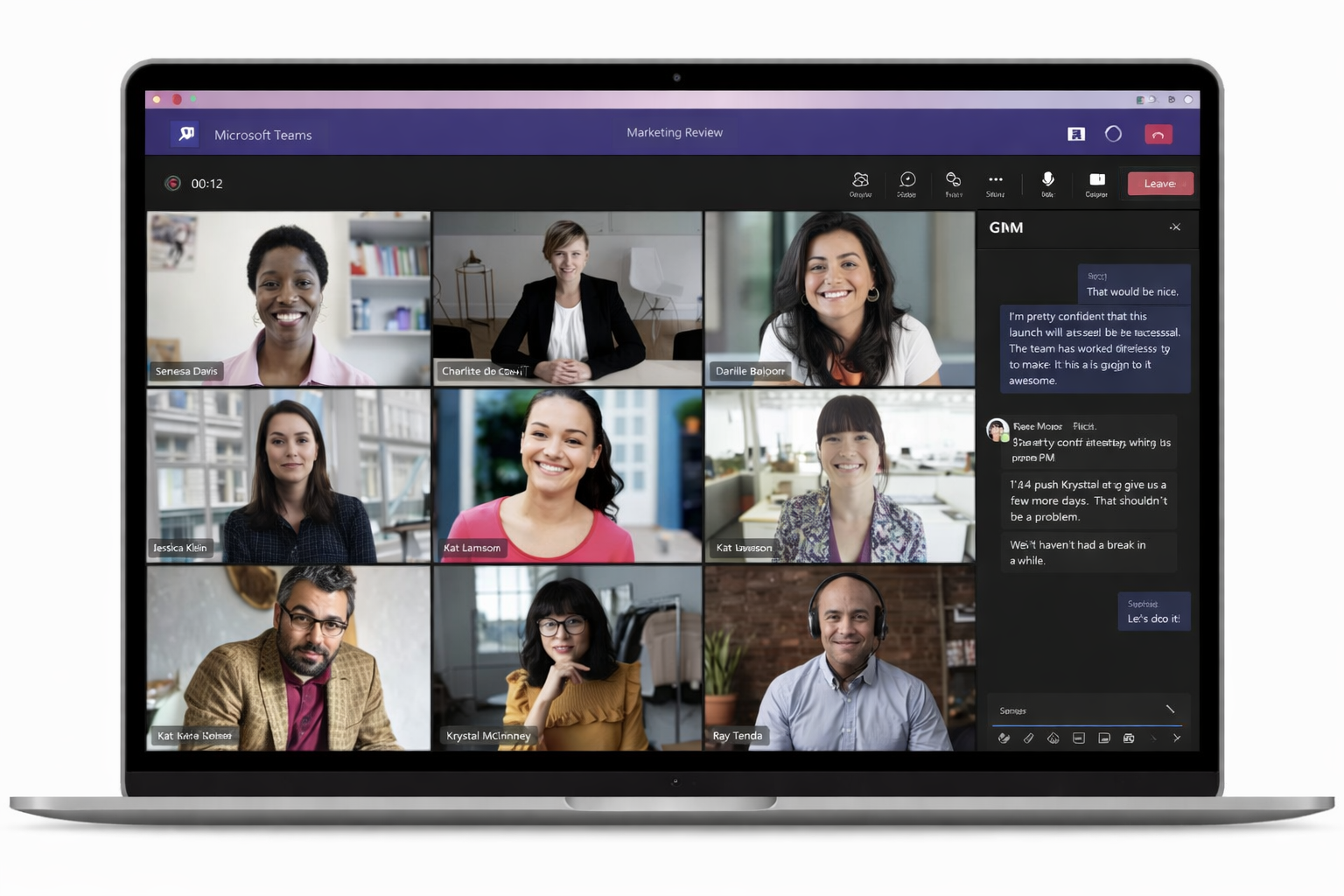
Microsoft Teams on macOS depends on several Privacy and Security permissions, and when those permissions are not granted, Teams will either prompt the user to enable them or block the feature until access is approved.
In real-world support, users frequently click Don’t Allow, dismiss the prompt, or complete the prompt but still need to enable the permission later in System Preferences. The result is a repeat set of common issues: camera not available, microphone not working, or screen sharing failing.
This guide documents exactly where these settings live in macOS Monterey and provides a repeatable checklist that helpdesk staff and end users can follow to restore full Teams functionality quickly.
macOS version note: This guide was created using macOS Monterey (macOS 12). The screenshots and menu paths reflect the Privacy & Security interface used in Monterey.
Open System Preferences
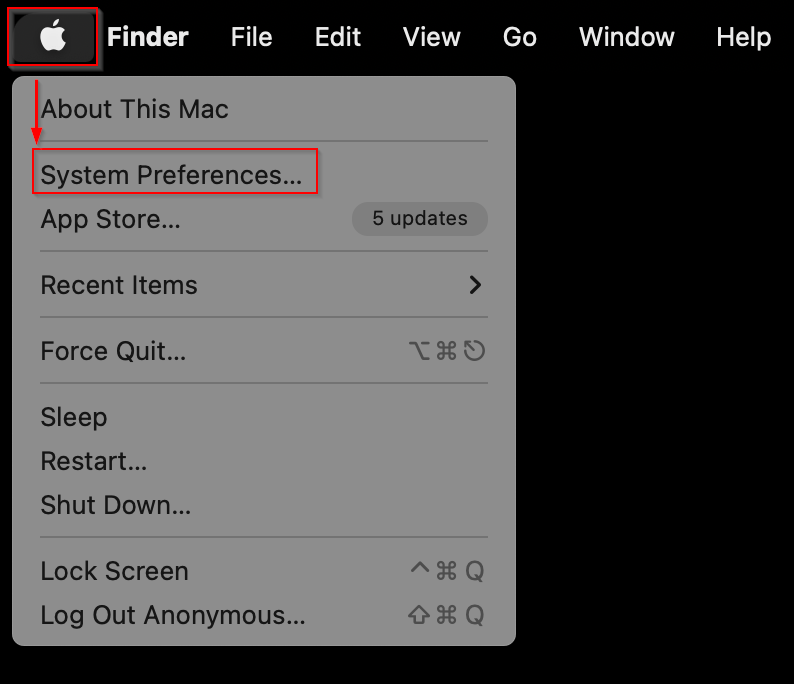
Click the Apple menu in the top-left corner of the screen and select System Preferences.
Open Security & Privacy
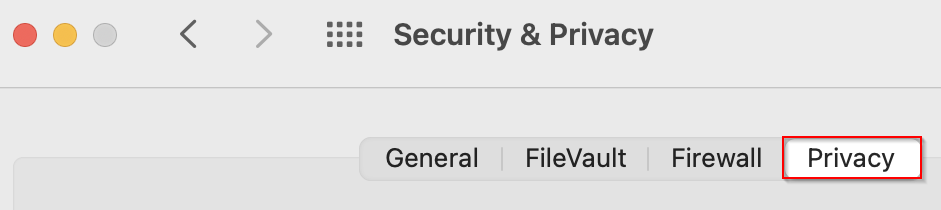
From System Preferences, open Security & Privacy and select the Privacy tab.
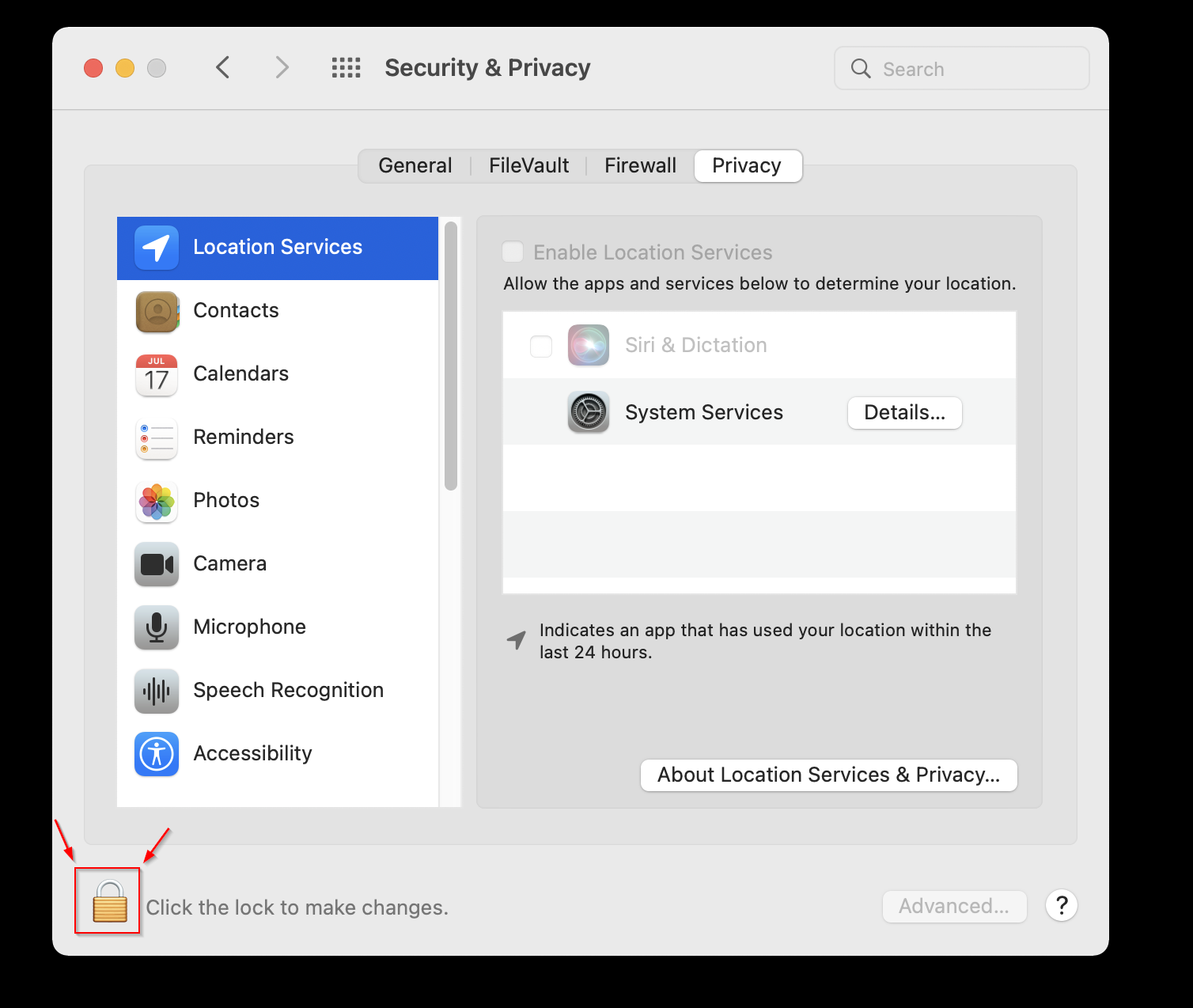
Unlock Privacy Settings
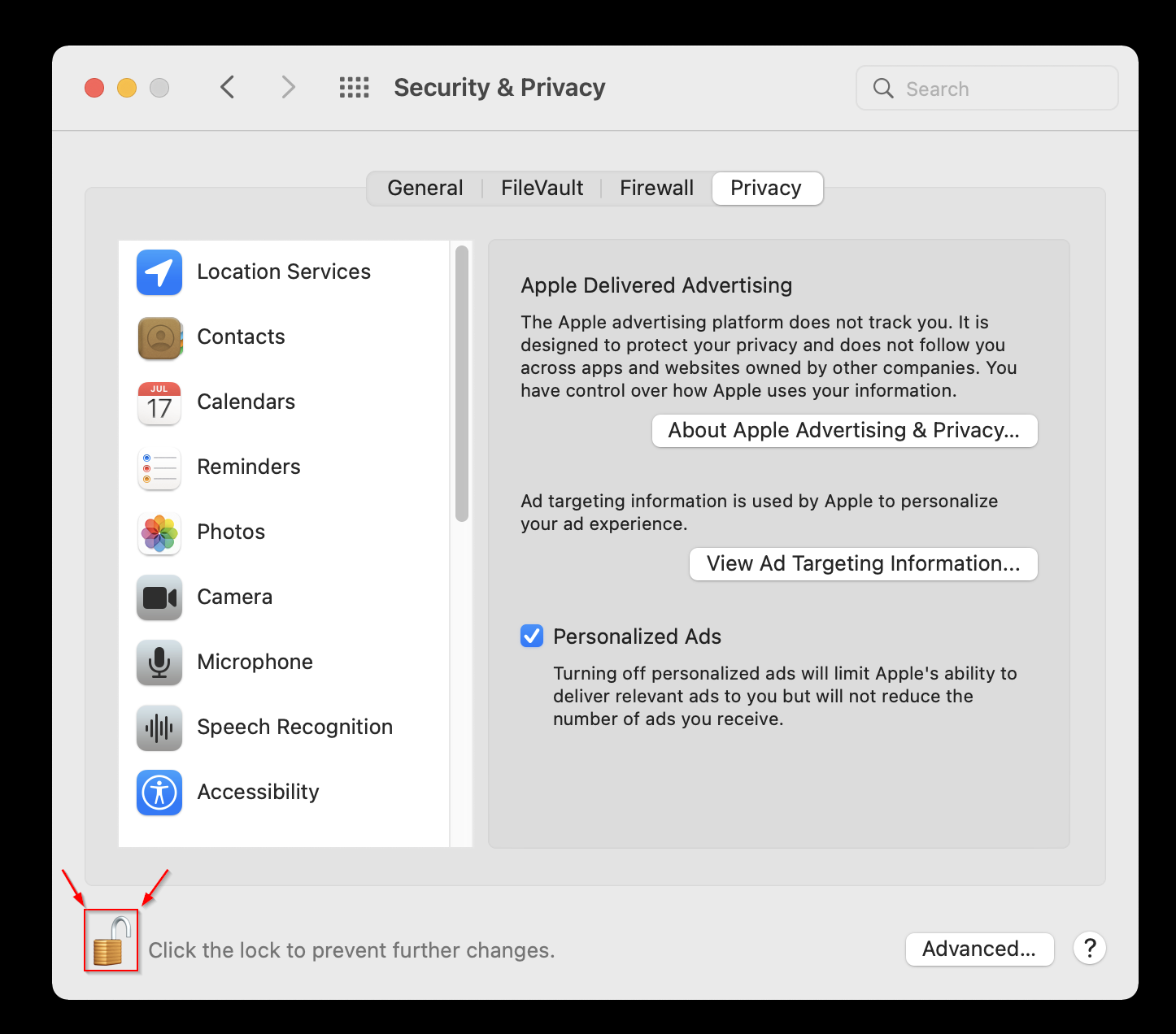
Before making changes, click the lock icon in the bottom-left corner and authenticate.
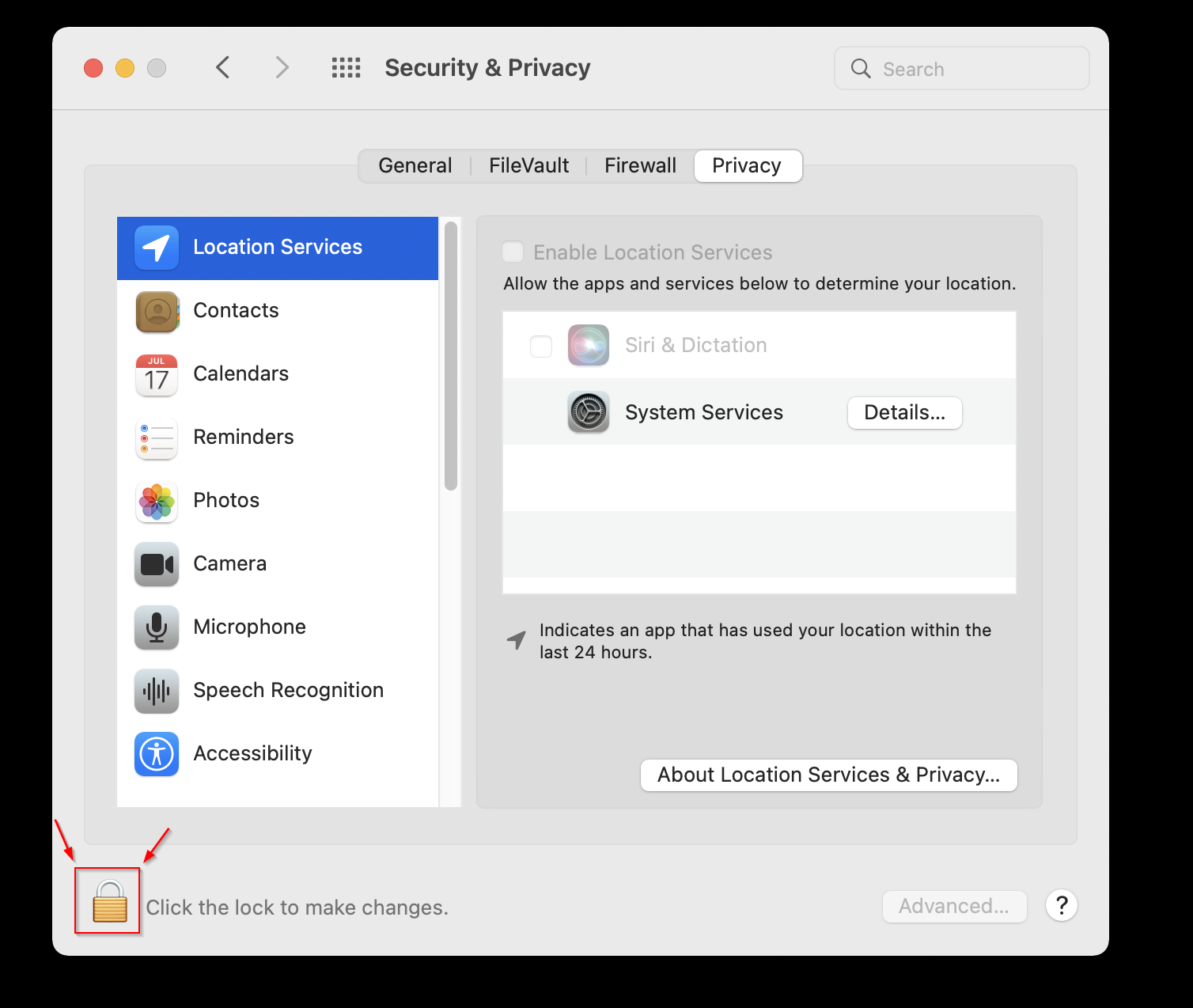
After entering your credentials, the settings will be unlocked.
Camera Permission
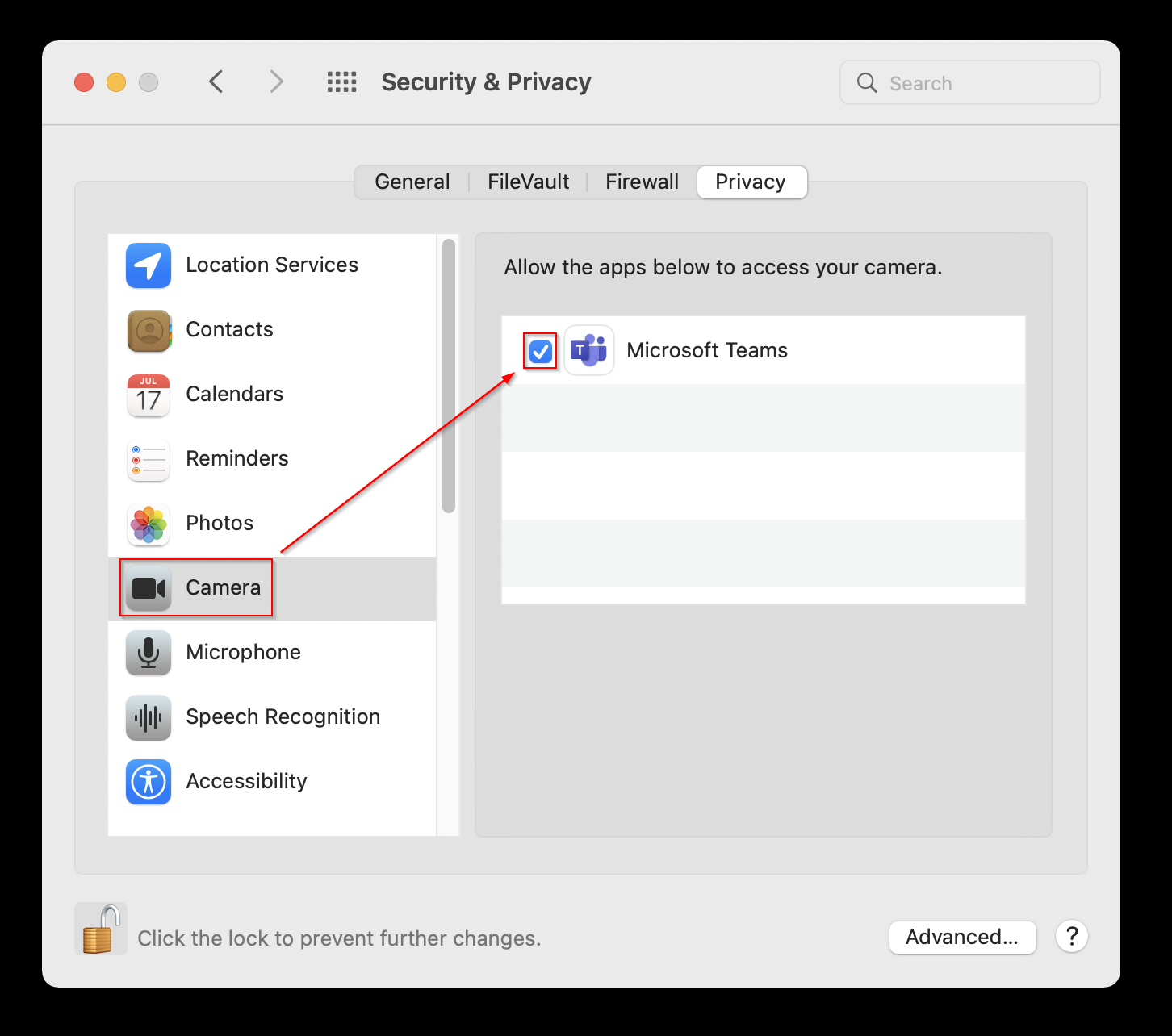
Microsoft Teams requires camera access for video meetings.
- Select Camera from the left-hand menu
- Ensure Microsoft Teams is checked
Microphone Permission
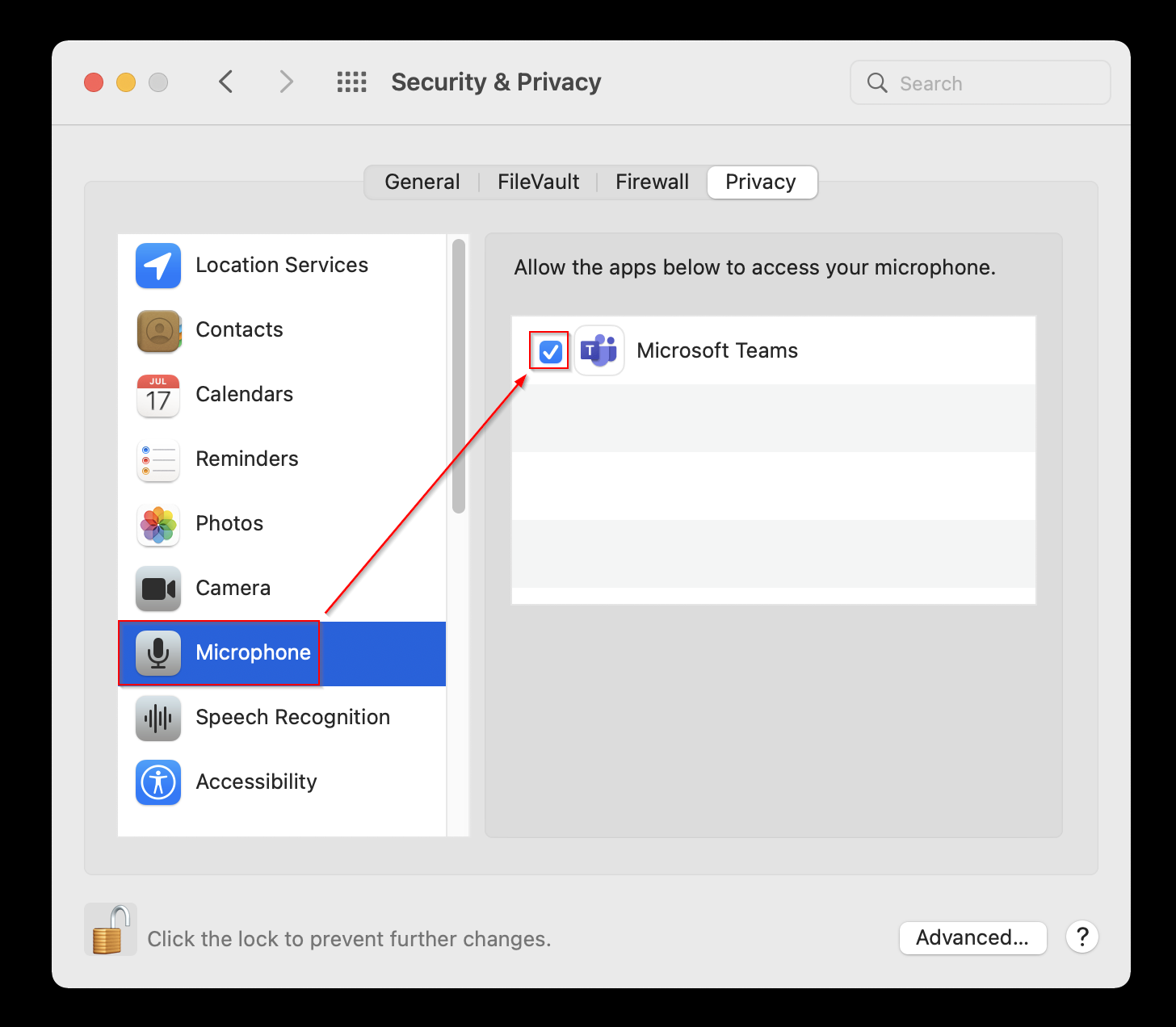
Microphone access is required so other participants can hear you during meetings.
- Select Microphone
- Ensure Microsoft Teams is checked
Accessibility Permission
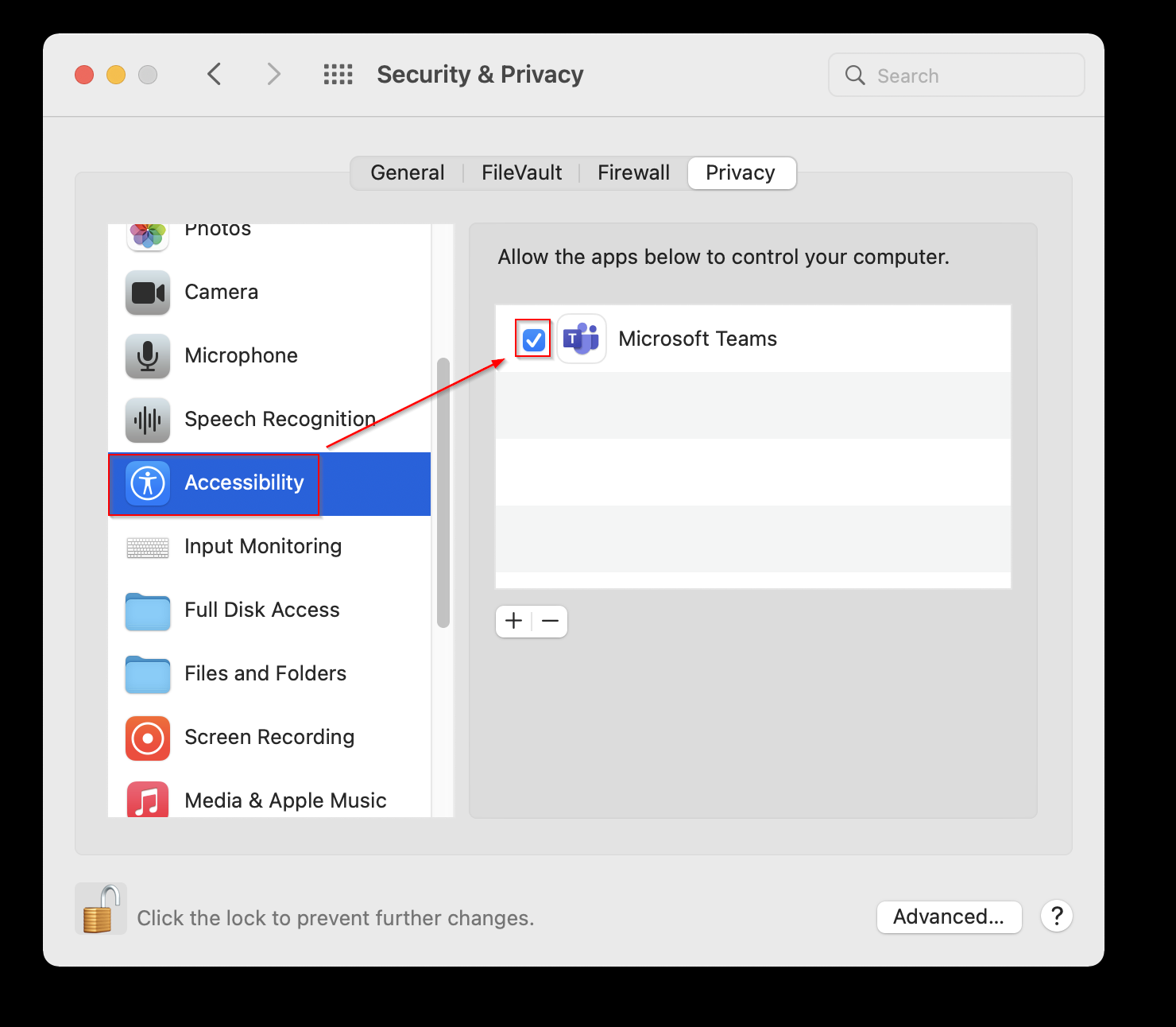
Accessibility access allows Teams to control certain system interactions such as meeting controls and keyboard shortcuts.
- Select Accessibility
- Ensure Microsoft Teams is checked
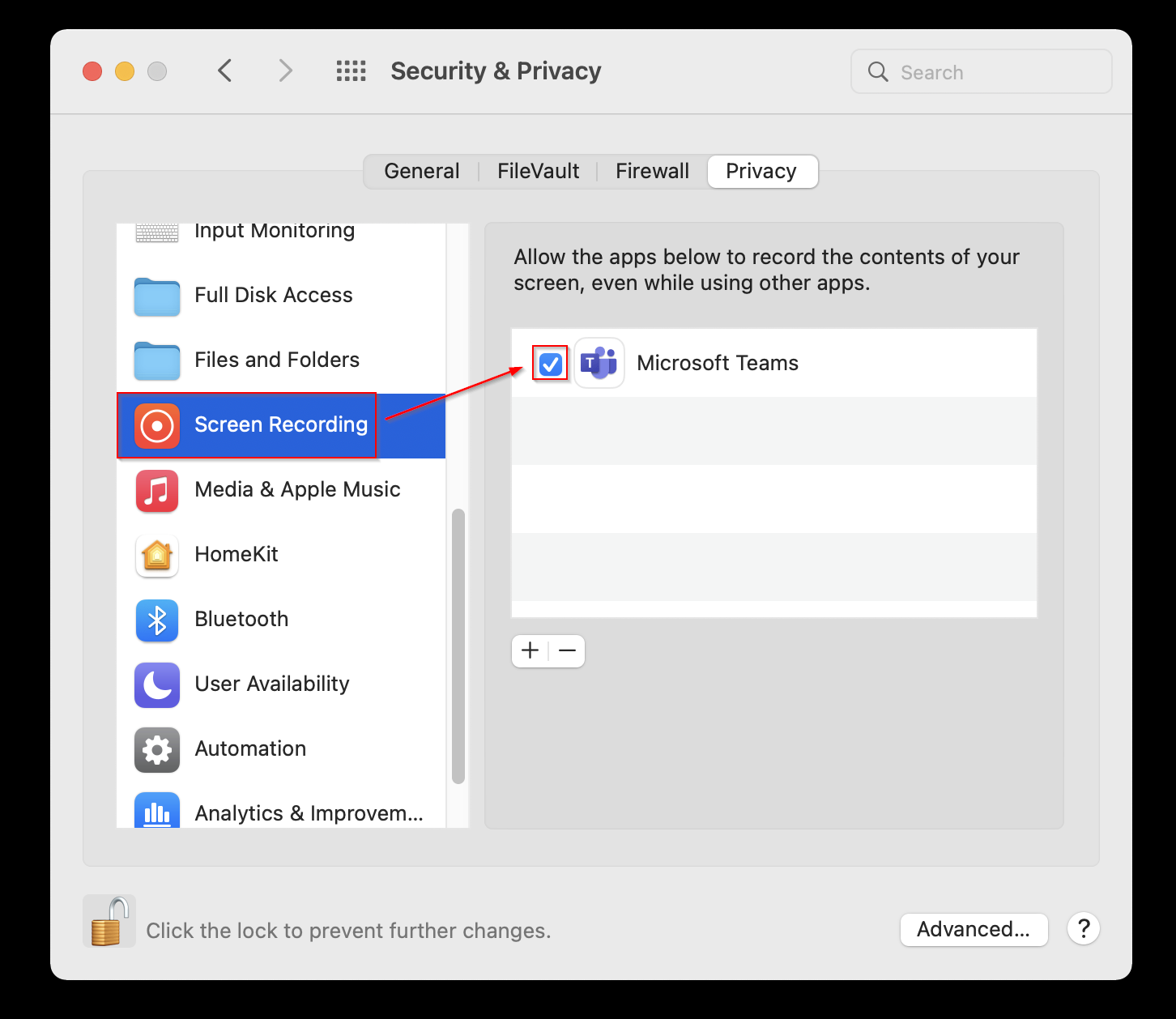
Screen Recording Permission
Screen Recording permission is required for screen sharing during meetings.
- Select Screen Recording
- Ensure Microsoft Teams is checked
Lock Settings When Finished
Once all permissions are enabled, click the lock icon again to prevent further changes.
Summary
On macOS Monterey, Microsoft Teams requires Camera, Microphone, Accessibility, and Screen Recording permissions to function correctly. If any of these permissions are missing, common issues include no video, no audio, or inability to share your screen.