
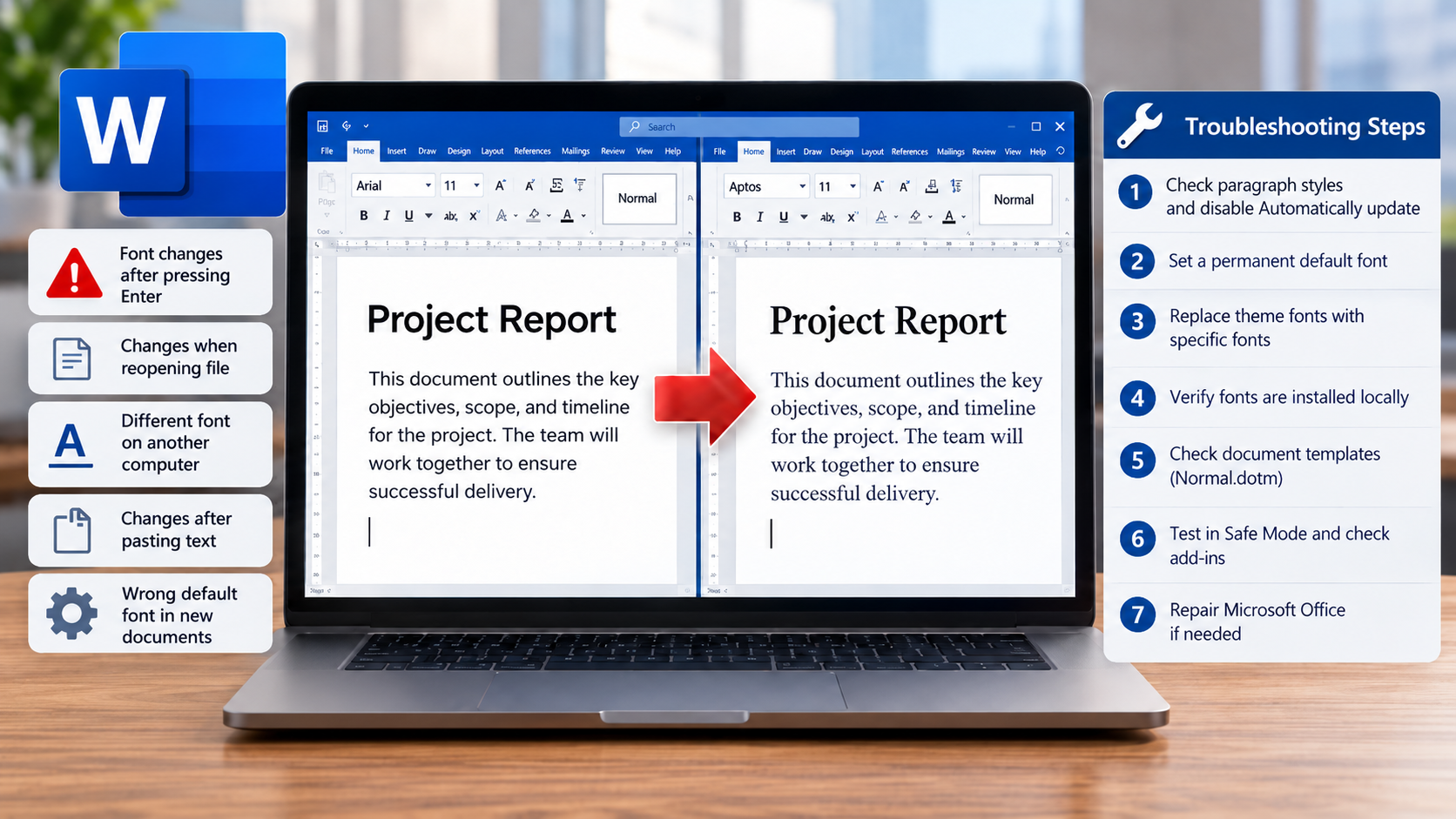
Microsoft Word sometimes changes fonts unexpectedly, even when a user has manually selected a specific font and saved the document. Text that was originally formatted in Arial or Calibri may suddenly appear in Aptos, Cambria, or another font. In some cases, the font changes while typing, after pressing Enter, when reopening a document, or when opening the same file on another computer.
These issues can affect Microsoft Word for Microsoft 365, Word 2024, earlier desktop versions of Word, and Word for the web.
Although the problem may appear random, unexpected font changes are usually related to document styles, theme fonts, default font settings, missing fonts, or document templates.
Simply selecting the text and changing the font back does not always resolve the underlying problem. If a paragraph style or document template is responsible, Word may continue applying the unwanted formatting.
This guide explains how Word manages fonts, how to identify what is causing the changes, and how to resolve the problem without unnecessarily modifying the rest of the document.
Understanding Why Microsoft Word Changes Fonts
Word uses several different mechanisms to control the appearance of text. Understanding the difference between them is important when troubleshooting unexpected font changes.
- Direct formatting: A font manually applied to selected text, such as Arial 11 pt.
- Paragraph and character styles: Formatting rules that control how text appears. Examples include Normal, No Spacing, Heading 1, and Heading 2.
- Document themes: Collections of fonts, colors, and other formatting settings that can affect multiple styles simultaneously.
- Document templates: Files that provide default styles and formatting for new documents. The standard Word template is called
Normal.dotm. - Font availability: Word may display a substitute font if the original font is unavailable or cannot be loaded.
These mechanisms interact with one another. For example, a document might use a Normal paragraph style that references the document’s theme font instead of a specific font. If the theme changes, the text can appear in a different font without the user manually changing the paragraph style.
It is also important to distinguish between two types of problems:
- The document’s formatting has actually changed. A style, template, or direct formatting operation has altered the font assigned to the text.
- Word is substituting a font during display. The document may still reference its original font, but Word is displaying another because the requested font is unavailable.
The solutions are different, so identifying which behavior is occurring can prevent unnecessary troubleshooting.
Step 1: Identify When the Font Changes
Before modifying Word’s settings, determine exactly when the font changes. This can help identify the underlying cause.
| Symptom | Likely Cause |
|---|---|
| Font changes after pressing Enter | Paragraph style or following-paragraph style |
| Several paragraphs suddenly change fonts | Automatically updating style |
| Font changes when a document theme is applied | Theme-based font |
| Font changes after closing and reopening Word | Default settings, templates, or add-ins |
| Font looks different on another computer | Missing font or font substitution |
| Font changes after pasting text | Source formatting or style conflicts |
| New documents have the wrong font | Default font or Normal.dotm |
| Only shared documents are affected | Styles, templates, or changes by collaborators |
Start by opening a new blank document and typing several paragraphs using the desired font. Save the document, close Word, reopen the file, and check whether the formatting remains consistent.
If the issue occurs only in an existing document, investigate that document’s styles and settings first. If every new document is affected, investigate Word’s defaults, templates, and add-ins.
Inspect the Formatting Word Is Applying
Word includes a useful diagnostic tool called Reveal Formatting.
- Place the cursor inside a paragraph where the font changes.
- Press
Shift + F1to open the Reveal Formatting pane. - Examine the font, size, and paragraph formatting information.
- Compare the problematic text with a paragraph that displays correctly.
This helps identify formatting differences that may not be immediately apparent from the ribbon. You can also check the applied style using the Styles pane on the Home tab.
Step 2: Disable Automatically Updating Styles
One of the most important settings to check is Word’s Automatically update option for paragraph styles.
When enabled, manually changing the formatting of a paragraph can modify the underlying style definition. Because multiple paragraphs may share that style, the change can affect text elsewhere in the document.
For example, imagine a document containing 50 paragraphs using the Normal style. If automatic updating is enabled for that style, changing the formatting of one paragraph can update the style and consequently affect the other paragraphs.
How to Disable Automatic Style Updates
- Open the affected document in the desktop version of Word.
- Select the Home tab.
- Open the Styles pane using the small arrow in the bottom-right corner of the Styles group.
- Find the affected style, such as Normal or No Spacing.
- Right-click the style and select Modify.
- Locate the Automatically update checkbox.
- If it is enabled, uncheck it.
- Click OK.
Repeat this process for other affected paragraph styles.
Note: Not every style exposes the Automatically update setting. If the option is missing, Word does not offer it for that particular style.
Check the Style Used After Pressing Enter
If Word changes the font whenever you start a new paragraph, return to the Modify Style dialog.
Locate the setting labeled Style for following paragraph.
This determines which style Word applies when you press Enter at the end of a paragraph.
For example, a Heading 1 paragraph may intentionally change to Normal when Enter is pressed. If those two styles use different fonts, the change may appear unexpected even though Word is functioning as configured.
Ensure the following-paragraph style is appropriate for the document and that its font is configured correctly.
Step 3: Set a Permanent Default Font
If Word consistently selects an unwanted font in new documents, change the default font.
For Windows desktop versions of Word:
- Open Microsoft Word and create a blank document.
- Press
Ctrl + Dto open the Font dialog. - Choose your preferred font, font style, and size.
- Click Set As Default.
- Select All documents based on the Normal template.
- Click OK to save the changes.
For example, you could configure Arial at 11 pt as your preferred default.
This changes the default font used by future documents based on the Normal template. It does not automatically replace every explicitly formatted paragraph in existing documents.
Microsoft also provides an option to change the font for the current document only.
What If the Default Font Keeps Resetting?
If the font reverts after restarting Word, the problem may involve the Normal template, insufficient file permissions, or an add-in that modifies document formatting.
These possibilities are addressed in the advanced troubleshooting sections below.
Step 4: Replace Theme Fonts with Specific Fonts
Word supports document themes that control the appearance of headings, body text, colors, and other design elements.
A theme can specify fonts using references such as +Body and +Headings, rather than fixed font names.
These references tell Word to use whichever body or heading font is assigned to the current document theme.
For example, a paragraph may be configured to use the body theme font. If the theme changes from one using Calibri to one using Aptos, the paragraph’s appearance can change accordingly.
How to Check Theme Fonts
- Open the document and select the Design tab.
- Select Fonts to examine the document’s current theme font selections.
- If desired, choose Customize Fonts to create a font theme with specific heading and body fonts.
- Open the Modify Style dialog for affected styles, and select the exact font you want, such as Arial, rather than a theme-dependent font entry.
- Save the document and reopen it to confirm that the formatting remains consistent.
Important: Using a named font within a paragraph style prevents that style from following ordinary theme font changes. However, it does not prevent someone from explicitly changing the style or applying direct formatting later.
Step 5: Understand Microsoft 365 Cloud Fonts and the Aptos Change
Microsoft 365 includes cloud fonts that can be downloaded as needed. These fonts are designed to improve document consistency across supported Office applications and devices.
Microsoft also introduced Aptos as the replacement for Calibri in the refreshed Office default theme. As a result, users may encounter documents with different default formatting depending on their Office version, template, or document theme.
How Cloud Fonts Work
Cloud fonts are hosted by Microsoft and made available through supported Office applications.
Once a cloud font has been downloaded, it can be used by Office applications on that device. Initial access to a font may require an internet connection.
Cloud font availability can be affected by network restrictions, Office connected-experience settings, or organizational policies.
However, cloud font downloading and automatic document style changes are not the same issue. An unavailable font can cause substitution, but it does not necessarily mean Word has changed the font assigned to the underlying style.
Troubleshooting Cloud Font Availability
If the document uses a Microsoft 365 cloud font that is not displaying correctly, check the following:
- Confirm the computer has internet access.
- Verify that Microsoft 365 is signed in and properly activated.
- In Word, navigate to File > Account > Account Privacy > Manage Settings and check whether optional connected experiences are enabled, if permitted by your organization.
- On corporate networks, verify that access to
https://fs.microsoft.comis not being blocked. - Restart Word and reopen the document.
Microsoft identifies connected experiences and network access as important considerations for cloud font availability.
Avoid disabling connected experiences solely to prevent font changes. That setting affects other Office services and is not a direct solution to paragraph style problems.
Step 6: Check Whether the Font Is Installed Locally
Another common cause of unexpected font substitutions is a font that is not available on the computer.
For example, a document created using a custom font on one computer may look different when opened on another computer that does not have that font.
Word may display a substitute font, changing the appearance, spacing, and layout of the document.
Verify Installed Fonts in Windows 11
- Open Windows Settings.
- Navigate to Personalization > Fonts.
- Search for the font used by the document.
- If the font is missing, obtain the appropriate font installation file from an authorized source.
- For supported TrueType (
.ttf) or OpenType (.otf) files, open the font file and select Install. - Restart Word and reopen the document.
Properly installed operating-system fonts become available to Office applications.
Not all Microsoft 365 cloud fonts should be treated as ordinary downloadable Windows fonts. Their availability, licensing, and distribution may differ from separately installed fonts.
Embed Fonts in Documents When Necessary
For documents that use custom fonts and need to be shared with other computers, Word supports font embedding.
Navigate to:
File > Options > Save > Preserve fidelity when sharing this document
Enable Embed fonts in the file.
Embedding can help preserve the document’s appearance when the receiving computer does not have the font installed.
If the document needs to remain editable, consider embedding the entire font rather than only the characters used.
Note: Font licensing and embedding permissions can limit whether this feature works, and embedded fonts can increase document size.
Step 7: Check for Formatting Imported from Other Documents
Copying content from webpages, emails, PDFs, or other Word documents can introduce formatting that conflicts with the destination document.
Pasted content may include font selections, paragraph styles, character formatting, or other layout properties.
This can result in different fonts appearing within the same document, sometimes becoming noticeable only when the user continues typing.
Change Word’s Default Paste Behavior
Navigate to:
File > Options > Advanced > Cut, copy, and paste
Review the available options for pasting within the same document, between documents, and between documents with conflicting style definitions.
Selecting Keep Text Only for appropriate paste scenarios can prevent unwanted source formatting from entering the document.
Alternatively, use the Paste Options menu to select the desired formatting behavior when inserting content.
Remove Problematic Direct Formatting
If a section has inconsistent fonts, select the affected text and press:
Ctrl + SpacebarThis removes manually applied character formatting and returns the selection to formatting defined by its underlying style.
Important: This can also remove intentional bold, italic, and other character-level formatting.
For heavily formatted documents, it is safer to test the command on a small selection first.
Step 8: Check Whether a Document Template Is Overwriting Styles
Word documents can be associated with templates that define styles and other formatting settings.
An important distinction exists between two similarly named features:
- Automatically update in the Modify Style dialog allows changes in paragraph formatting to update the style definition.
- Automatically update document styles in the Templates and Add-ins dialog can synchronize a document’s styles with those defined in its attached template.
The second setting is especially relevant when a document’s formatting changes after it is reopened.
Inspect the Attached Template
In the Windows desktop version of Word:
- Open the affected document.
- Navigate to File > Options > Add-Ins.
- Under Manage, select Templates and click Go.
- Examine the attached document template.
- Check the Automatically update document styles setting.
If automatic updating is enabled, styles may be refreshed from the attached template, potentially replacing the formatting that was previously configured in the document.
For documents that should retain their own style definitions, consider disabling this option after verifying the organization’s requirements.
Note: This feature is sometimes intentionally used by organizations to enforce standardized document formatting, so it should not be disabled indiscriminately in managed environments.
Step 9: Troubleshoot the Normal.dotm Template
If the problem affects newly created documents and continues after setting a default font, investigate the Normal template.
Word uses Normal.dotm to store default styles and various customizations.
On a typical Windows installation, the file is located in:
%APPDATA%\Microsoft\TemplatesIts usual expanded location is:
C:\Users\<Username>\AppData\Roaming\Microsoft\TemplatesCheck Whether the Template Can Be Modified
Close Word, locate Normal.dotm, right-click the file, and select Properties.
Verify that it is not marked Read-only and that your user account has appropriate permissions to modify it.
A permissions problem can prevent changes to the default font from being saved.
In a managed corporate environment, contact IT support rather than bypassing deliberate file permissions or policies.
Reset the Normal Template
If the template appears corrupted or its settings are behaving unpredictably, Word can regenerate it.
- Close every open Word window.
- Open File Explorer and enter the following in the address bar:
%APPDATA%\Microsoft\Templates- Locate
Normal.dotm. - Make a backup copy of the file.
- Rename the original file to:
Normal.dotm.old- Start Word again.
Word will normally create a new Normal template using its default settings.
Warning: Regenerating Normal.dotm resets customizations contained in the original template, including modified styles and potentially macros, AutoText, and other settings. This is why renaming and preserving the old file is preferable to deleting it.
Step 10: Test Word in Safe Mode and Check Add-Ins
Word add-ins can modify documents, insert content, apply templates, or interact with formatting settings.
If the font continues resetting and the issue occurs across multiple documents, testing Word without its normal add-ins is a useful diagnostic step.
Press Windows + R, enter the following command, and press Enter:
winword /safeWord should open in Safe Mode.
Create a new test document, apply the desired font, save it, and reopen it during the test.
If the problem stops occurring in Safe Mode, an add-in or other component disabled during Safe Mode may be involved.
Isolate Problematic Add-Ins
Open Word normally and navigate to:
File > Options > Add-Ins
At the bottom of the window, select COM Add-ins from the Manage menu and click Go.
Temporarily disable nonessential add-ins, restart Word, and repeat the font test.
Re-enable add-ins individually to identify which one is associated with the problem.
Note: Safe Mode also changes other startup behavior, so a successful test does not conclusively prove an add-in is responsible.
Step 11: Repair Microsoft Office if the Problem Continues
If font changes occur across unrelated documents, persist in Safe Mode, and cannot be explained by styles, templates, or unavailable fonts, an Office installation problem is another possibility.
On Windows 11:
- Open Settings > Apps > Installed apps.
- Locate Microsoft 365 or Microsoft Office.
- Open the application’s menu and choose Modify, if available.
- Select Quick Repair and follow the instructions.
- If the problem persists, consider Online Repair.
Online Repair is more comprehensive and typically requires an internet connection. Depending on the installation and licensing configuration, it may require Office activation or sign-in again.
Repair should be a later troubleshooting step, not the first response to a font change in a single document.
Special Considerations for Word for the Web
Word for the web supports many formatting features, but it does not expose all the style and template controls available in the desktop application.
For example, users cannot modify built-in styles in Word for the web in the same way they can in desktop Word.
If a font repeatedly changes in a document edited through a browser, an effective troubleshooting approach is to open that document in the desktop application, inspect and correct its styles, save it, and then return to Word for the web.
For documents with persistent or inherited formatting problems, creating a new document and pasting content without source formatting can also help isolate the issue.
However, this removes intentional formatting and may require headings, tables, and other document elements to be reconstructed.
If an organization uses Word exclusively through a browser, consider maintaining a properly configured master document for users to duplicate when creating new files.
Recommended Troubleshooting Order
For most unexpected Microsoft Word font changes, the following sequence provides an efficient way to isolate the cause.
- Identify whether the problem occurs in one document or all documents.
- Inspect the affected paragraph’s style and font using Reveal Formatting.
- Disable Automatically update for affected styles, where available.
- Verify the following-paragraph style if the font changes after pressing Enter.
- Replace theme-dependent fonts with specific fonts where consistency is required.
- Set the appropriate default font for future documents.
- Check that required fonts are available and that pasted content is not introducing formatting.
- Inspect attached templates and their automatic style updating settings.
- Investigate Normal.dotm, add-ins, and the Office installation if the issue persists across documents.