
How to Repair Microsoft Edge WebView2 Runtime in Windows 11
Microsoft Edge WebView2 Runtime is a component included with Windows 11 that allows applications such as Microsoft Teams, Outlook, Microsoft 365 applications, Windows Widgets, and many third-party programs to display web-based content within their interfaces.
If WebView2 becomes corrupted, outdated, or unable to start correctly, applications that depend on it may fail to open, display blank windows, crash, or report that WebView2 is missing.
This guide explains what WebView2 Runtime is, how it works, how to repair it in Windows 11, and what additional troubleshooting steps can be taken if repairing WebView2 does not resolve the issue.
What is Microsoft Edge WebView2 Runtime?
Microsoft Edge WebView2 allows Windows applications to display web-based content inside a normal desktop application.
Instead of requiring developers to build every part of an application’s interface using traditional Windows components, WebView2 allows portions of the application to be created using standard web technologies such as HTML, CSS, and JavaScript. WebView2 then uses the Chromium-based Microsoft Edge rendering engine to display that content inside the application.
For example, an application may have a normal Windows executable that handles local operating system functions while WebView2 renders portions of its interface, login pages, dashboards, or other web-based components.
The WebView2 Runtime is separate from the Microsoft Edge browser. An application does not need to actually open Microsoft Edge in order to use WebView2.
WebView2 normally runs as the process:
msedgewebview2.exeSeeing several instances of this process in Task Manager is normal. Like Microsoft Edge and other Chromium-based applications, WebView2 separates functions such as rendering, networking, graphics processing, and other tasks into multiple processes for security, performance, and reliability.
WebView2 Runtime is included with Windows 11. Microsoft recommends the Evergreen WebView2 Runtime, which automatically receives updates through Microsoft Edge Update.
Symptoms of a WebView2 Runtime Problem
A damaged or malfunctioning WebView2 Runtime can cause several different symptoms. Applications may refuse to launch, open to a blank or white window, crash shortly after opening, become stuck while loading, or display an error indicating that Microsoft Edge WebView2 Runtime is missing.
Because several applications can share the same WebView2 Runtime installation, one clue that WebView2 itself may be the problem is when several unrelated applications begin experiencing similar interface or startup problems at the same time.
How to Repair Microsoft Edge WebView2 Runtime in Windows 11
Administrator permissions are normally required to perform the repair.
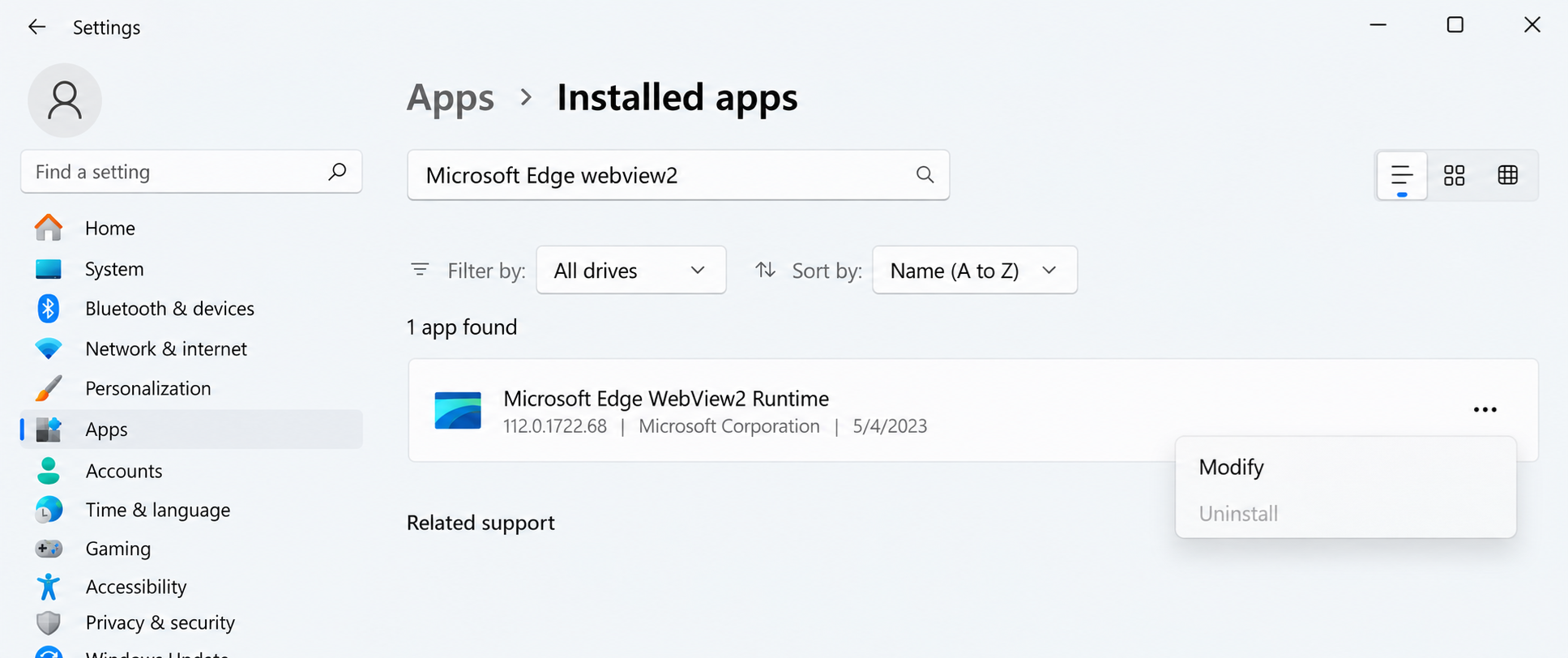
WebView2 may not always appear normally in the Windows 11 Installed Apps list.
Step 1: Close Applications Using WebView2
Close Microsoft Teams, Outlook, Microsoft 365 applications, and any other applications that may currently be using WebView2.
You can also open Task Manager and verify that the applications have completely closed.
Step 2: Open Registry Editor
Press:
Windows + REnter:
regeditPress Enter.
Approve the User Account Control prompt if one appears.
Navigate to:
HKEY_LOCAL_MACHINE\SOFTWARE\WOW6432Node\Microsoft\Windows\CurrentVersion\Uninstall\Microsoft EdgeWebViewLocate the following registry value:
SystemComponentChange the value from:
1to:
0Close Registry Editor.
Changing this value allows Microsoft Edge WebView2 Runtime to appear in the Windows 11 Installed Apps list so that its repair option can be accessed.
Editing the Windows Registry incorrectly can cause system problems. Consider backing up the registry before making changes.
Step 3: Repair WebView2 Runtime
Open:
Settings > Apps > Installed appsSearch for:
Microsoft Edge WebView2 RuntimeClick the three-dot menu next to Microsoft Edge WebView2 Runtime and select:
ModifyApprove the User Account Control prompt if one appears.
Select:
RepairAllow the repair process to complete.
Restart Windows 11 before testing the affected application again.
Reinstall WebView2 if Repair Does Not Work
If WebView2 does not appear in Installed Apps, the repair option is unavailable, or repairing WebView2 does not resolve the problem, reinstalling the Evergreen WebView2 Runtime is the next step.
Microsoft provides an Evergreen Bootstrapper as well as complete Evergreen Standalone Installers.
The Standalone Installer is particularly useful when troubleshooting because the complete WebView2 installation package can be downloaded before installation.
Microsoft’s official WebView2 download page is available here:
Download Microsoft Edge WebView2 Runtime
Under Evergreen Standalone Installer, select the architecture that matches the computer.
For most Windows 11 computers, this will be:
x64ARM-based Windows 11 computers require the ARM64 version.
Right-click the downloaded installer and select:
Run as administratorAllow the installation or repair to complete and restart Windows 11.
For administrators deploying WebView2 through scripts or management tools, the installer also supports silent installation.
For example:
MicrosoftEdgeWebView2RuntimeInstallerX64.exe /silent /installRunning the installer from an elevated administrator process installs WebView2 machine-wide.
Microsoft Teams and WebView2 Problems
Microsoft Teams is particularly important when troubleshooting WebView2 because the current Teams desktop client uses the Evergreen Microsoft Edge WebView2 Runtime.
This means a damaged WebView2 installation can cause Microsoft Teams to stop functioning even though the Teams application itself is still correctly installed.
Possible symptoms include:
- Teams fails to open
- Teams immediately closes after launching
- Teams displays a blank or white window
- Teams becomes stuck at the loading screen
- Teams displays WebView2-related errors
- Teams reports that WebView2 is required even though it appears to be installed
- Teams repeatedly crashes
If Teams suddenly stops working and WebView2 is suspected, repair or reinstall WebView2 first using the procedures above.
Restart Windows 11 before attempting to open Teams again.
Reset Microsoft Teams
If repairing WebView2 does not resolve the Teams problem, reset the Teams application.
Open:
Settings > Apps > Installed appsLocate:
Microsoft TeamsClick the three-dot menu and select:
Advanced optionsScroll down and select:
ResetResetting Teams removes locally stored application data and forces Teams to recreate its local configuration.
You may need to sign back into Teams afterward.
Clear the Microsoft Teams Cache
A damaged Teams cache can also cause problems that appear similar to WebView2 failures.
Completely close Microsoft Teams.
Open File Explorer and enter the following path into the address bar:
%userprofile%\AppData\Local\Packages\MSTeams_8wekyb3d8bbwe\LocalCache\Microsoft\MSTeamsDelete the files and folders inside the directory.
Restart Teams.
The first launch may take slightly longer because Teams must rebuild its cache.
Microsoft’s documentation for clearing the Teams cache is available here:
Microsoft – Clear the Teams Client Cache
Reinstall Microsoft Teams
If WebView2 has been repaired or reinstalled but Teams continues to fail, reinstall Teams itself.
Open:
Settings > Apps > Installed appsLocate Microsoft Teams and uninstall it.
Restart Windows 11.
Download and reinstall the current Teams client from Microsoft.
Repairing WebView2 before reinstalling Teams is important because reinstalling Teams alone may not resolve the problem if the shared WebView2 Runtime is the actual cause.
Teams can also temporarily be accessed through a supported web browser at:
This can provide a temporary workaround while troubleshooting the desktop application.
Additional WebView2 Troubleshooting
Check Antivirus, EDR, and Application Control Software
WebView2 may be installed correctly but prevented from functioning by security software.
Possible sources of interference include:
- Antivirus software
- Endpoint Detection and Response software
- Windows Defender Application Control
- Application allowlisting software
- Data Loss Prevention software
- Third-party security products
WebView2 creates multiple child processes for rendering, graphics, networking, and other functions.
If security software prevents these processes from starting, applications may freeze, crash, or display blank windows.
Administrators troubleshooting managed computers should review security logs for blocked instances of:
msedgewebview2.exeSecurity software should not simply be permanently disabled. Any exclusions should follow the organization’s security policies and the recommendations of the security product vendor.
Check Whether WebView2 Updates Are Being Blocked
The Evergreen WebView2 Runtime is designed to update automatically.
In corporate environments, however, WebView2 updates can be controlled using Microsoft Edge Update Group Policy or device-management software.
If WebView2 updates have been disabled, the Runtime can become outdated and potentially cause compatibility problems with applications expecting newer WebView2 functionality.
Administrators can review:
Computer Configuration > Administrative Templates > Microsoft Edge Update > Applications > Microsoft Edge WebView2 RuntimeVerify that installation or update policies are not preventing WebView2 from updating.
WebView2 Installer Says It Is Already Installed
Another possible problem occurs when an application reports that WebView2 is missing but Microsoft’s WebView2 installer reports that the Runtime is already installed.
This can occur when Windows still recognizes the WebView2 installation even though parts of the Runtime are damaged.
First perform the repair procedure described earlier.
If the normal repair option is unavailable, download the Evergreen Standalone Installer directly from Microsoft and run it as administrator.
The WebView2 installer can often repair an existing installation without requiring the Runtime to first be manually removed.
Avoid manually deleting WebView2 program directories or registry entries unless normal repair methods have failed and you fully understand the consequences.
Removing only part of the WebView2 installation can leave Windows believing WebView2 is still installed while important components are missing.
Repair Windows 11 System Files
If WebView2 continues to experience problems after being repaired or reinstalled, Windows system file corruption may also be contributing to the issue.
This is particularly worth checking if other Windows or Microsoft applications are also experiencing unusual crashes, startup failures, or corrupted components.
Open Command Prompt or Windows Terminal as Administrator.
Run:
DISM.exe /Online /Cleanup-Image /RestoreHealthAllow the command to complete.
DISM checks and repairs the Windows component store that Windows uses when servicing and repairing system files.
After DISM completes, run:
sfc /scannowSystem File Checker scans protected Windows system files and attempts to replace missing or corrupted files.
Restart Windows 11 after both commands have completed.
If WebView2 problems continue, attempt the WebView2 repair or reinstall procedure again.