
Restore the original Windows Photo Viewer in Windows 11
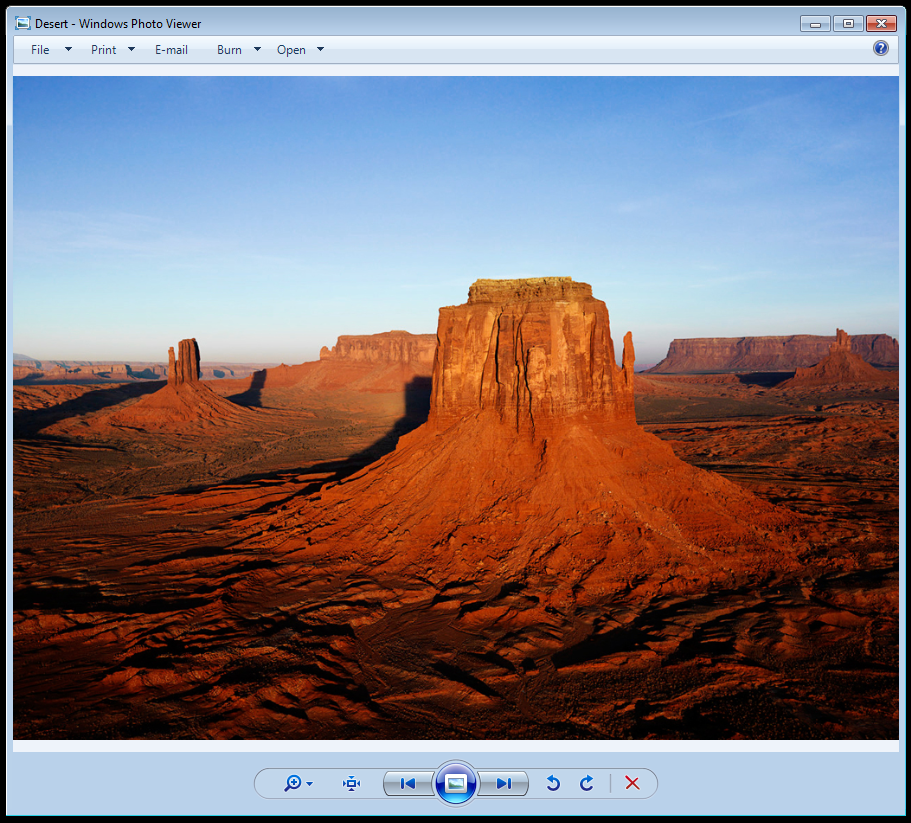
How to Restore Windows Photo Viewer in Windows 11
Many users still prefer the speed and simplicity of the classic Windows Photo Viewer. Although Microsoft did not remove the program itself, the registry entries that associate image file types with Photo Viewer were removed during the upgrade from Windows 10. This is why Photo Viewer no longer appears as an option in the Open With or Default Apps menus.
Why Windows Photo Viewer Disappeared
The executable and application framework for Windows Photo Viewer still exist on every Windows 11 system. What is missing are the file association registrations stored in the HKEY_CURRENT_USER\SOFTWARE\Classes and in the Explorer\FileExts keys.
Without these associations Windows has no way of offering Photo Viewer as an option for common image file formats such as JPG, PNG, BMP, TIFF, or WDP.
Restoring Windows Photo Viewer
To restore Photo Viewer, you can import a registry file that re-adds the necessary associations.
The below registry edits do the following:
- Creates file association keys for major image file types including BMP, CR2, DIB, JFIF, JPE, JPEG, JPG, JXR, PNG, TIF, TIFF, and WDP
- Sets their default value to
PhotoViewer.FileAssoc.Tiff - Adds Photo Viewer to the
OpenWithProgidslists for each extension so that it appears in Default Apps and Open With menus
To restore Windows Photo Viewer
- Create a Registry file using the code displayed further below.
- Right click the file and select Merge
- Accept the UAC prompt
- Click Yes when asked to confirm adding the information to the registry
- Open Settings then Apps then Default Apps and choose Windows Photo Viewer as your default image viewer
Undoing the Change
If you ever want to remove the restored associations and revert Windows to its original configuration, you can use the second set of registry code.
This file simply deletes the values and keys that were added during the restore process.
To undo the restoration
- Open Undo_Restore_Windows_Photo_Viewer_CURRENT_USER.reg
- Right click and select Merge
- Approve the prompts
- Windows will remove the Photo Viewer file associations and default entries
What the Registry Files Contain
Here is a simplified explanation of the structure used in the restore file:
[HKEY_CURRENT_USER\SOFTWARE\Classes\.jpg]
@="PhotoViewer.FileAssoc.Tiff"

[HKEY_CURRENT_USER\SOFTWARE\Microsoft\Windows\CurrentVersion\
 Explorer\FileExts\.jpg\OpenWithProgids]
"PhotoViewer.FileAssoc.Tiff"=hex(0):
The first key sets the file type association while the second ensures Photo Viewer appears as an available program for that extension. The pattern is repeated for all supported image formats.
Note: The below registry code is just for the current user and is not computer wide.
Enable The Original Windows Photo Viewer
Windows Registry Editor Version 5.00

[HKEY_CURRENT_USER\SOFTWARE\Classes\.bmp]
@="PhotoViewer.FileAssoc.Tiff"

[HKEY_CURRENT_USER\SOFTWARE\Classes\.cr2]
@="PhotoViewer.FileAssoc.Tiff"

[HKEY_CURRENT_USER\SOFTWARE\Classes\.dib]
@="PhotoViewer.FileAssoc.Tiff"

[HKEY_CURRENT_USER\SOFTWARE\Classes\.gif]
@="PhotoViewer.FileAssoc.Tiff"

[HKEY_CURRENT_USER\SOFTWARE\Classes\.ico]
@="PhotoViewer.FileAssoc.Tiff"

[HKEY_CURRENT_USER\SOFTWARE\Classes\.jfif]
@="PhotoViewer.FileAssoc.Tiff"

[HKEY_CURRENT_USER\SOFTWARE\Classes\.jpe]
@="PhotoViewer.FileAssoc.Tiff"

[HKEY_CURRENT_USER\SOFTWARE\Classes\.jpeg]
@="PhotoViewer.FileAssoc.Tiff"

[HKEY_CURRENT_USER\SOFTWARE\Classes\.jpg]
@="PhotoViewer.FileAssoc.Tiff"

[HKEY_CURRENT_USER\SOFTWARE\Classes\.jxr]
@="PhotoViewer.FileAssoc.Tiff"

[HKEY_CURRENT_USER\SOFTWARE\Classes\.png]
@="PhotoViewer.FileAssoc.Tiff"

[HKEY_CURRENT_USER\SOFTWARE\Classes\.tif]
@="PhotoViewer.FileAssoc.Tiff"

[HKEY_CURRENT_USER\SOFTWARE\Classes\.tiff]
@="PhotoViewer.FileAssoc.Tiff"

[HKEY_CURRENT_USER\SOFTWARE\Classes\.wdp]
@="PhotoViewer.FileAssoc.Tiff"


[HKEY_CURRENT_USER\SOFTWARE\Microsoft\Windows\CurrentVersion\Explorer\FileExts\.bmp\OpenWithProgids]
"PhotoViewer.FileAssoc.Tiff"=hex(0):

[HKEY_CURRENT_USER\SOFTWARE\Microsoft\Windows\CurrentVersion\Explorer\FileExts\.cr2\OpenWithProgids]
"PhotoViewer.FileAssoc.Tiff"=hex(0):

[HKEY_CURRENT_USER\SOFTWARE\Microsoft\Windows\CurrentVersion\Explorer\FileExts\.dib\OpenWithProgids]
"PhotoViewer.FileAssoc.Tiff"=hex(0):

[HKEY_CURRENT_USER\SOFTWARE\Microsoft\Windows\CurrentVersion\Explorer\FileExts\.gif\OpenWithProgids]
"PhotoViewer.FileAssoc.Tiff"=hex(0):

[HKEY_CURRENT_USER\SOFTWARE\Microsoft\Windows\CurrentVersion\Explorer\FileExts\.ico\OpenWithProgids]
"PhotoViewer.FileAssoc.Tiff"=hex(0):

[HKEY_CURRENT_USER\SOFTWARE\Microsoft\Windows\CurrentVersion\Explorer\FileExts\.jpeg\OpenWithProgids]
"PhotoViewer.FileAssoc.Tiff"=hex(0):

[HKEY_CURRENT_USER\SOFTWARE\Microsoft\Windows\CurrentVersion\Explorer\FileExts\.bmp\OpenWithProgids]
"PhotoViewer.FileAssoc.Tiff"=hex(0):

[HKEY_CURRENT_USER\SOFTWARE\Microsoft\Windows\CurrentVersion\Explorer\FileExts\.jfif\OpenWithProgids]
"PhotoViewer.FileAssoc.Tiff"=hex(0):

[HKEY_CURRENT_USER\SOFTWARE\Microsoft\Windows\CurrentVersion\Explorer\FileExts\.jpe\OpenWithProgids]
"PhotoViewer.FileAssoc.Tiff"=hex(0):

[HKEY_CURRENT_USER\SOFTWARE\Microsoft\Windows\CurrentVersion\Explorer\FileExts\.jxr\OpenWithProgids]
"PhotoViewer.FileAssoc.Tiff"=hex(0):

[HKEY_CURRENT_USER\SOFTWARE\Microsoft\Windows\CurrentVersion\Explorer\FileExts\.jpeg\OpenWithProgids]
"PhotoViewer.FileAssoc.Tiff"=hex(0):

[HKEY_CURRENT_USER\SOFTWARE\Microsoft\Windows\CurrentVersion\Explorer\FileExts\.jpg\OpenWithProgids]
"PhotoViewer.FileAssoc.Tiff"=hex(0):

[HKEY_CURRENT_USER\SOFTWARE\Microsoft\Windows\CurrentVersion\Explorer\FileExts\.png\OpenWithProgids]
"PhotoViewer.FileAssoc.Tiff"=hex(0):

[HKEY_CURRENT_USER\SOFTWARE\Microsoft\Windows\CurrentVersion\Explorer\FileExts\.tif\OpenWithProgids]
"PhotoViewer.FileAssoc.Tiff"=hex(0):

[HKEY_CURRENT_USER\SOFTWARE\Microsoft\Windows\CurrentVersion\Explorer\FileExts\.tiff\OpenWithProgids]
"PhotoViewer.FileAssoc.Tiff"=hex(0):

[HKEY_CURRENT_USER\SOFTWARE\Microsoft\Windows\CurrentVersion\Explorer\FileExts\.wdp\OpenWitsdhProgids]
"PhotoViewer.FileAssoc.Tiff"=hex(0):
Remove The Original Windows Photo Viewer and Restore the Windows 11 Version
Windows Registry Editor Version 5.00

[HKEY_CURRENT_USER\SOFTWARE\Classes\.bmp]
@=-

[HKEY_CURRENT_USER\SOFTWARE\Classes\.cr2]
@=-

[HKEY_CURRENT_USER\SOFTWARE\Classes\.dib]
@=-a

[HKEY_CURRENT_USER\SOFTWARE\Classes\.gif]
@=-

[HKEY_CURRENT_USER\SOFTWARE\Classes\.ico]
@=-

[HKEY_CURRENT_USER\SOFTWARE\Classes\.jfif]
@=-

[HKEY_CURRENT_USER\SOFTWARE\Classes\.jpe]
@=-

[HKEY_CURRENT_USER\SOFTWARE\Classes\.jpeg]
@=-

[HKEY_CURRENT_USER\SOFTWARE\Classes\.jpg]
@=-

[HKEY_CURRENT_USER\SOFTWARE\Classes\.jxr]
@=-

[HKEY_CURRENT_USER\SOFTWARE\Classes\.png]
@=-

[HKEY_CURRENT_USER\SOFTWARE\Classes\.tif]
@=-

[HKEY_CURRENT_USER\SOFTWARE\Classes\.tiff]
@=-

[HKEY_CURRENT_USER\SOFTWARE\Classes\.wdp]
@=-


[HKEY_CURRENT_USER\SOFTWARE\Microsoft\Windows\CurrentVersion\Explorer\FileExts\.bmp\OpenWithProgids]
"PhotoViewer.FileAssoc.Tiff"=-

[HKEY_CURRENT_USER\SOFTWARE\Microsoft\Windows\CurrentVersion\Explorer\FileExts\.cr2\OpenWithProgids]
"PhotoViewer.FileAssoc.Tiff"=-

[HKEY_CURRENT_USER\SOFTWARE\Microsoft\Windows\CurrentVersion\Explorer\FileExts\.dib\OpenWithProgids]
"PhotoViewer.FileAssoc.Tiff"=-

[HKEY_CURRENT_USER\SOFTWARE\Microsoft\Windows\CurrentVersion\Explorer\FileExts\.gif\OpenWithProgids]
"PhotoViewer.FileAssoc.Tiff"=-

[HKEY_CURRENT_USER\SOFTWARE\Microsoft\Windows\CurrentVersion\Explorer\FileExts\.ico\OpenWithProgids]
"PhotoViewer.FileAssoc.Tiff"=-

[HKEY_CURRENT_USER\SOFTWARE\Microsoft\Windows\CurrentVersion\Explorer\FileExts\.jpe\OpenWithProgids]
"PhotoViewer.FileAssoc.Tiff"=-

[HKEY_CURRENT_USER\SOFTWARE\Microsoft\Windows\CurrentVersion\Explorer\FileExts\.jpeg\OpenWithProgids]
"PhotoViewer.FileAssoc.Tiff"=-

[HKEY_CURRENT_USER\SOFTWARE\Microsoft\Windows\CurrentVersion\Explorer\FileExts\.bmp\OpenWithProgids]
"PhotoViewer.FileAssoc.Tiff"=-

[HKEY_CURRENT_USER\SOFTWARE\Microsoft\Windows\CurrentVersion\Explorer\FileExts\.jfif\OpenWithProgids]
"PhotoViewer.FileAssoc.Tiff"=-

[HKEY_CURRENT_USER\SOFTWARE\Microsoft\Windows\CurrentVersion\Explorer\FileExts\.jpeg\OpenWithProgids]
"PhotoViewer.FileAssoc.Tiff"=-

[HKEY_CURRENT_USER\SOFTWARE\Microsoft\Windows\CurrentVersion\Explorer\FileExts\.jpg\OpenWithProgids]
"PhotoViewer.FileAssoc.Tiff"=-

[HKEY_CURRENT_USER\SOFTWARE\Microsoft\Windows\CurrentVersion\Explorer\FileExts\.jxr\OpenWithProgids]
"PhotoViewer.FileAssoc.Tiff"=-

[HKEY_CURRENT_USER\SOFTWARE\Microsoft\Windows\CurrentVersion\Explorer\FileExts\.png\OpenWithProgids]
"PhotoViewer.FileAssoc.Tiff"=-

[HKEY_CURRENT_USER\SOFTWARE\Microsoft\Windows\CurrentVersion\Explorer\FileExts\.tif\OpenWithProgids]
"PhotoViewer.FileAssoc.Tiff"=-

[HKEY_CURRENT_USER\SOFTWARE\Microsoft\Windows\CurrentVersion\Explorer\FileExts\.tiff\OpenWithProgids]
"PhotoViewer.FileAssoc.Tiff"=-

[HKEY_CURRENT_USER\SOFTWARE\Microsoft\Windows\CurrentVersion\Explorer\FileExts\.wdp\OpenWithProgids]
"PhotoViewer.FileAssoc.Tiff"=-
How to Take the Above Code and Turn it into a registry file
Follow these steps to copy the code, create a .reg file, and apply the changes to your Windows system.
Step 1. Open Notepad
- Press Windows Key + R.
- Type notepad.
- Press Enter.
Step 2. Copy the Registry Code
Copy the entire block of code below exactly as shown.
Step 3. Paste AND SAVE
Press Ctrl + V to past the code into notepad.
Then save the file as “nameyouwant.reg”.
Be sure that you save the file as a “.reg” otherwise it will not become a registry file.
Note: These changes apply only to the current user account and do not modify system level keys. Importing the file requires administrative privileges.