
How to connect to MS 365 Admin and Exchange via Powershell
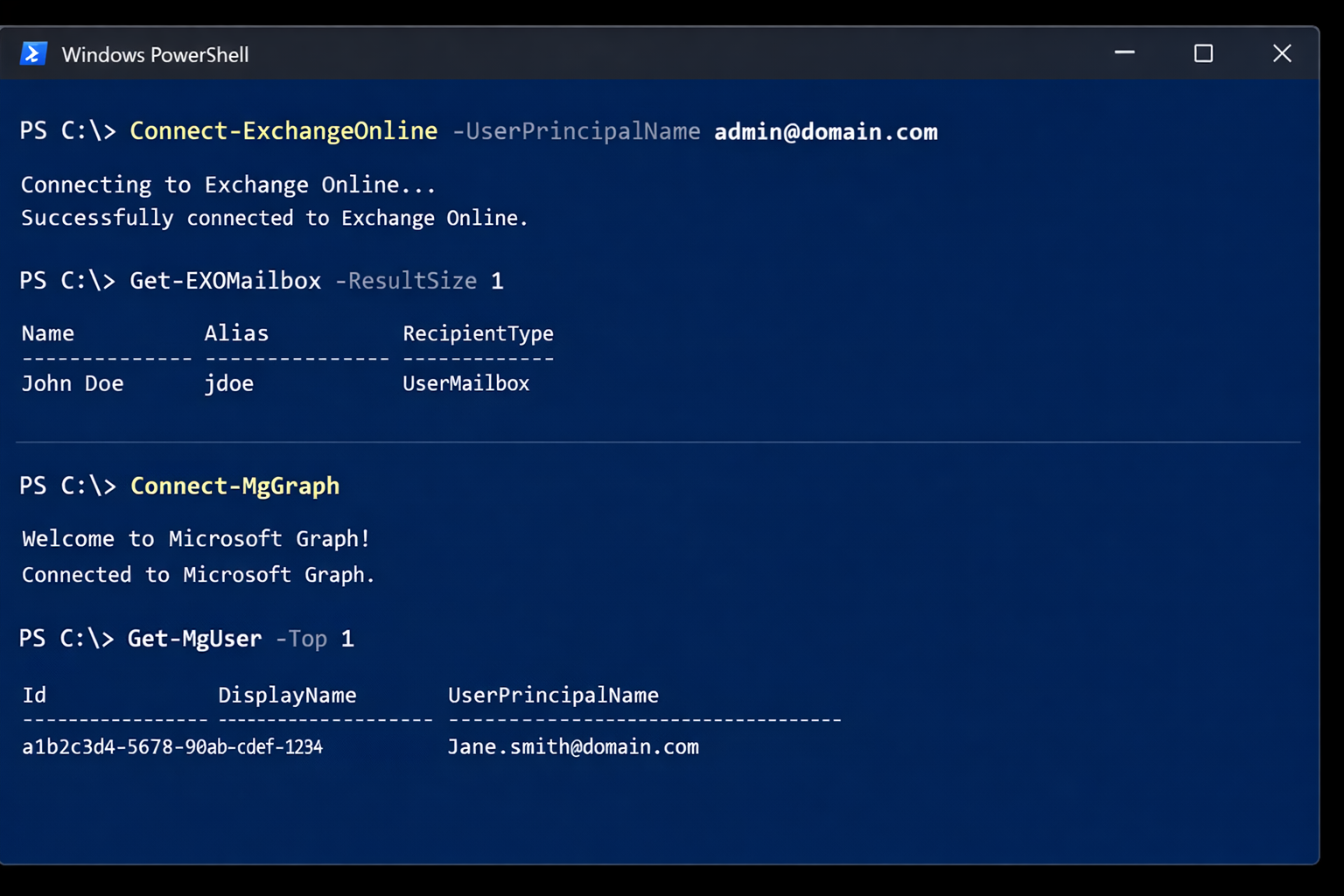
If you manage Microsoft 365, you will typically use two PowerShell modules:
- Exchange Online PowerShell (
ExchangeOnlineManagement) for mail, recipients, transport rules, and mailbox settings. - Microsoft Graph PowerShell (
Microsoft.Graph) for broader Microsoft 365 and Entra ID administration (users, groups, licensing, devices, and more).
This guide shows the exact commands to get connected, plus a detailed breakdown of what each command does.
Prerequisites
- Use an account with the required admin roles (Exchange Admin, Global Admin, or delegated roles as appropriate).
- Modern authentication is used, and MFA is supported.
- Run these commands in an elevated PowerShell window only if your environment requires it. In most cases,
-Scope CurrentUseravoids needing admin rights.
List of Commands
# 1) Session-only execution policy (does not persist)
Set-ExecutionPolicy -Scope Process -ExecutionPolicy Bypass

# 2) Exchange Online module install + load
Install-Module ExchangeOnlineManagement -Scope CurrentUser
Import-Module ExchangeOnlineManagement

# 3) Microsoft Graph module install (general Microsoft 365 admin tasks)
Install-Module -Name Microsoft.Graph -Scope CurrentUser

# 4) Connect to Exchange Online
Connect-ExchangeOnline -UserPrincipalName [email protected]
Optional (recommended) if you also want to connect to Microsoft 365 via Graph PowerShell:
 #5) Connects to Microsoft 365 via Microsoft Graph
Connect-MgGraph
Command-by-command breakdown
1) Set a session-only execution policy
Set-ExecutionPolicy -Scope Process -ExecutionPolicy BypassWhat it does
- Temporarily changes PowerShell execution rules for the current PowerShell process only.
Bypassmeans execution policy restrictions will not block scripts in this one session.
Why it matters
- Some environments have restrictive execution policies that can interfere with module installation or loading.
- Using
-Scope Processis the safest approach for a quickstart because it does not permanently change your system. Close the PowerShell window and the setting resets.
Key parameters
-Scope Process: affects only the current PowerShell window.-ExecutionPolicy Bypass: disables enforcement of execution policy restrictions for this session.
2) Install the Exchange Online PowerShell module
Install-Module ExchangeOnlineManagement -Scope CurrentUserWhat it does
- Downloads and installs Microsoft’s supported Exchange Online PowerShell module from the PowerShell Gallery.
- This module provides
Connect-ExchangeOnlineand Exchange Online cmdlets used for day-to-day administration.
Why it matters
- If this module is not installed, Exchange Online connection and management commands will not be available.
Key parameters
Install-Module: installs a module from a repository (typically PSGallery).ExchangeOnlineManagement: the module name.-Scope CurrentUser: installs to your user profile so you usually do not need local admin rights.
What you might see
- A prompt to trust the PowerShell Gallery repository the first time you install a module.
- A prompt to install or update the NuGet provider if it is missing.
3) Load the Exchange module into the current session
Import-Module ExchangeOnlineManagementWhat it does
- Loads the module into memory for the current PowerShell session, making its cmdlets immediately available.
Why it matters
- PowerShell can auto-load modules, but it is not always reliable in locked-down environments.
- Importing explicitly makes your documentation consistent and repeatable.
Quick verification
- Confirm the command exists after import:
Get-Command Connect-ExchangeOnline4) Install Microsoft Graph PowerShell (Microsoft 365 admin tasks)
Install-Module -Name Microsoft.Graph -Scope CurrentUserWhat it does
- Installs the Microsoft Graph PowerShell SDK, which provides cmdlets for Microsoft 365 and Entra ID administration.
- The Graph SDK covers users, groups, licensing, applications, devices, and many other services exposed through Microsoft Graph.
Why it matters
- Exchange cmdlets manage Exchange Online, but they do not cover everything in Microsoft 365.
- Graph cmdlets are the standard way to automate many modern Microsoft 365 admin tasks.
Key parameters
-Name Microsoft.Graph: installs the main Graph module package (Graph is split into many submodules behind the scenes).-Scope CurrentUser: installs to your profile without requiring admin rights.
Important note
- Installing Graph does not automatically connect you to your tenant. You still run
Connect-MgGraphto authenticate.
5) Connect to Exchange Online
Connect-ExchangeOnline -UserPrincipalName [email protected]What it does
- Authenticates to Exchange Online using modern authentication and establishes a session so Exchange cmdlets can run against your tenant.
- Supports MFA and modern sign-in flows.
Why it matters
- This is the actual “connect” step for Exchange Online administration.
Key parameters
-UserPrincipalName: the user principal name (UPN) used to sign in, often an email-style login.
Behind the scenes (high level)
- The module obtains an authentication token for Exchange Online.
- A management session is established so cmdlets can query and update tenant configuration.
Quick verification
- Run a simple command to confirm you are connected:
Get-EXOMailbox -ResultSize 1Optional: Connect to Microsoft 365 with Graph PowerShell
If your goal includes “Microsoft 365 admin” tasks like managing users, groups, or licenses, connect to Graph as well:
Connect-MgGraphIn many environments, you should request the least privilege scopes required for what you are doing. Example:
Connect-MgGraph -Scopes "User.Read.All","Group.Read.All"After connecting, you can run Graph commands such as:
Get-MgUser -Top 5
Get-MgGroup -Top 5
Disconnect when finished
Disconnecting is a good habit, especially if you work across multiple tenants or admin contexts.
Disconnect-ExchangeOnline
Disconnect-MgGraph
Troubleshooting tips
- Repository trust prompt: If prompted to trust the PSGallery repository, choose Yes to continue module installation.
- Command not found: Close and reopen PowerShell, then run
Import-Module ExchangeOnlineManagementagain. - Access denied or insufficient privileges: Confirm your account has the necessary Microsoft 365 roles for the tasks you are attempting.