
Temporarily Changing Environment Variables for a Single Session in Windows
There are situations where you need to run an application using different environment variable values without permanently modifying system or user settings. This is common in troubleshooting, testing, or working within locked down corporate environments.
Windows allows environment variables to be overridden per session, meaning the changes only apply to the current Command Prompt or batch file execution. Once the session ends, everything automatically reverts to its original state.
This article explains how to temporarily change environment variables for a single session and provides a real world example using Wireshark.
Why You Would Use This Method
Common use cases include:
- Redirecting temporary files to a different drive
- Working around application bugs related to temp file handling
- Testing application behavior without modifying system configuration
- Running tools in restricted corporate environments
- Avoiding registry edits or permanent environment changes
Because the scope is limited to a single session, this method is safe, reversible, and does not require administrative privileges unless the application itself does.
Example: Temporarily Overriding TEMP and TMP
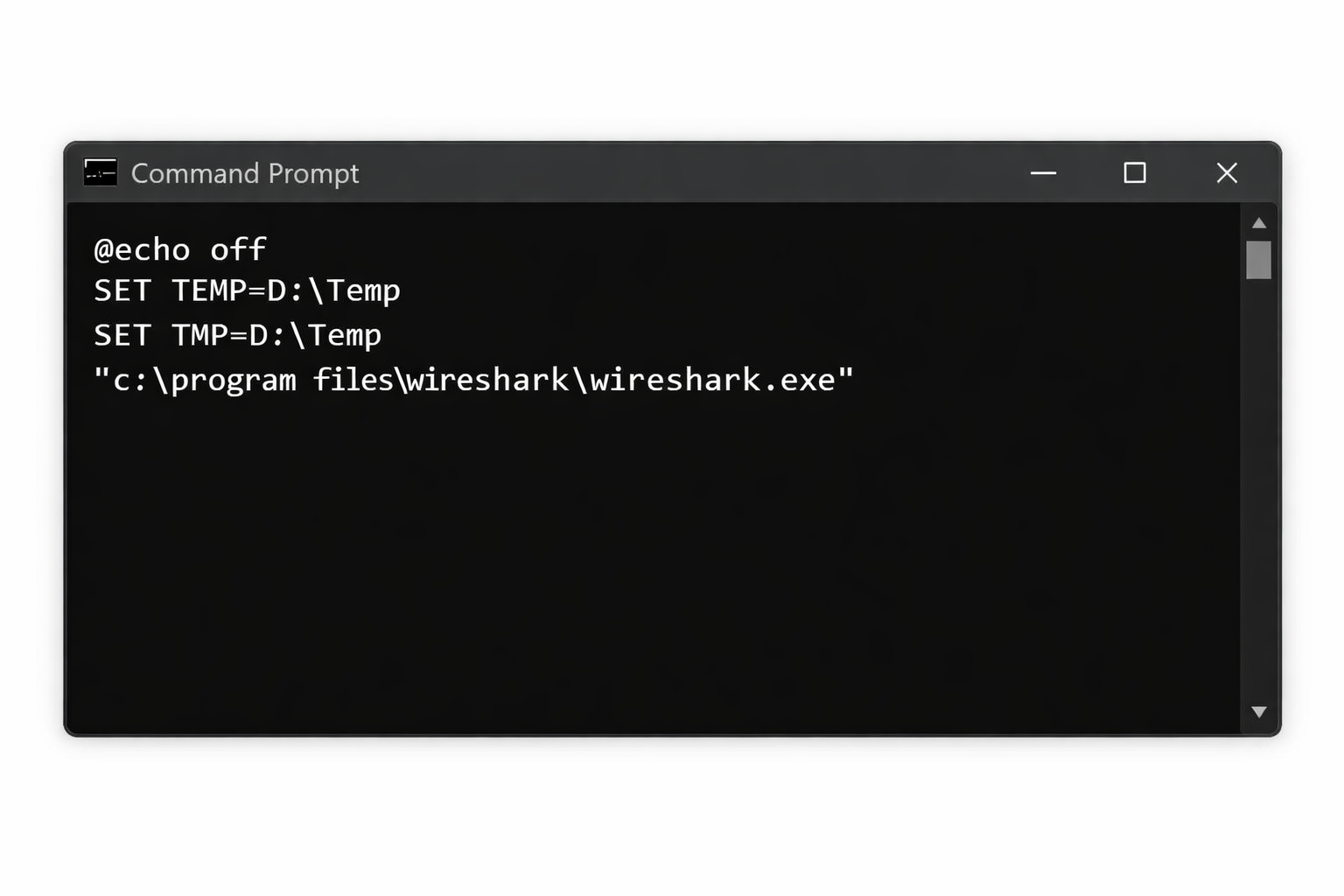
Batch File Example
@echo off
SET TEMP=D:\Temp
SET TMP=D:\Temp
"c:\program files\wireshark\wireshark.exe"
When this batch file is executed, Wireshark runs using D:\Temp as its temporary file location. The system wide and user environment variables remain untouched.
As soon as the process exits, Windows discards the temporary values.
Command Breakdown
@echo off
- Prevents commands from being printed to the console
SET TEMP=D:\Temp
- Temporarily overrides the
TEMPenvironment variable - Applies only to the current session
- No registry or system changes are made
SET TMP=D:\Temp
- Temporarily overrides the
TMPenvironment variable - Some applications reference
TMPinstead ofTEMP - Best practice is to set both to avoid inconsistent behavior
“c:\program files\wireshark\wireshark.exe”
- Launches the application within the modified environment
- The application inherits the session scoped environment variables
(Each command prompt window is considered its own session.)
Important Behavior to Understand
- Environment variable changes are process scoped
- Child processes inherit the modified values
- Closing the Command Prompt or batch file ends the override
- No reboot is required
- No administrative permissions are needed
- This method works reliably across Windows versions
Verifying the Temporary Change
You can confirm the overridden values by adding the following before launching the application:
echo %TEMP%
echo %TMP%
pause
This allows you to verify the environment variables before the program starts.
CMD vs PowerShell Note
This article focuses on cmd.exe behavior. PowerShell handles environment variables differently but follows the same session scoped principle.
Example in PowerShell:
$env:TEMP="D:\Temp"
$env:TMP="D:\Temp"
Once the PowerShell session ends, the variables revert automatically.
Real World Example: Wireshark on a Corporate Windows 11 System
This technique was used as a temporary workaround on a corporate managed Windows 11 machine where Wireshark could not save capture files normally.
Following the January 13, 2026 Windows 11 security update (KB5074109), Microsoft acknowledged several critical bugs that caused application failures when interacting with files. Affected systems experienced issues when applications attempted to write or finalize files using default temporary directories.
Common symptoms included:
- “File not found” errors
- “Unable to save” errors
- Applications appearing to save files but producing no output
- Temporary files failing during final commit
In this environment, Wireshark successfully captured packets but failed when attempting to save the capture file. The destination path was valid, permissions were correct, and sufficient disk space was available. The failure occurred during the temporary file handling stage rather than at the final save location.
Because the system was corporate managed, modifying system environment variables permanently was not permitted.
Why Redirecting TEMP and TMP Solved the Issue
Wireshark writes capture data to a temporary location defined by the %TEMP% and %TMP% environment variables before committing the final file.
Due to the Windows bug introduced by the January security update, the default temporary path failed during this process. By launching Wireshark from a batch file that temporarily redirected TEMP and TMP to a known working directory, Wireshark was able to complete the save operation successfully.
No permanent configuration changes were made, no reboot was required, and the workaround remained isolated to a single session.
Side Note: Microsoft later released an out of band update on January 17, 2026 (KB5078127) to resolve these application and file handling failures.
Key Takeaways
SETmodifies environment variables only for the current session- Applications inherit the modified values at launch
- Changes automatically revert when the session ends
- Ideal for troubleshooting, testing, and corporate environments
- Safe alternative to system wide environment changes