
Convert an Exchange Online User Mailbox to a Shared Mailbox Using PowerShell
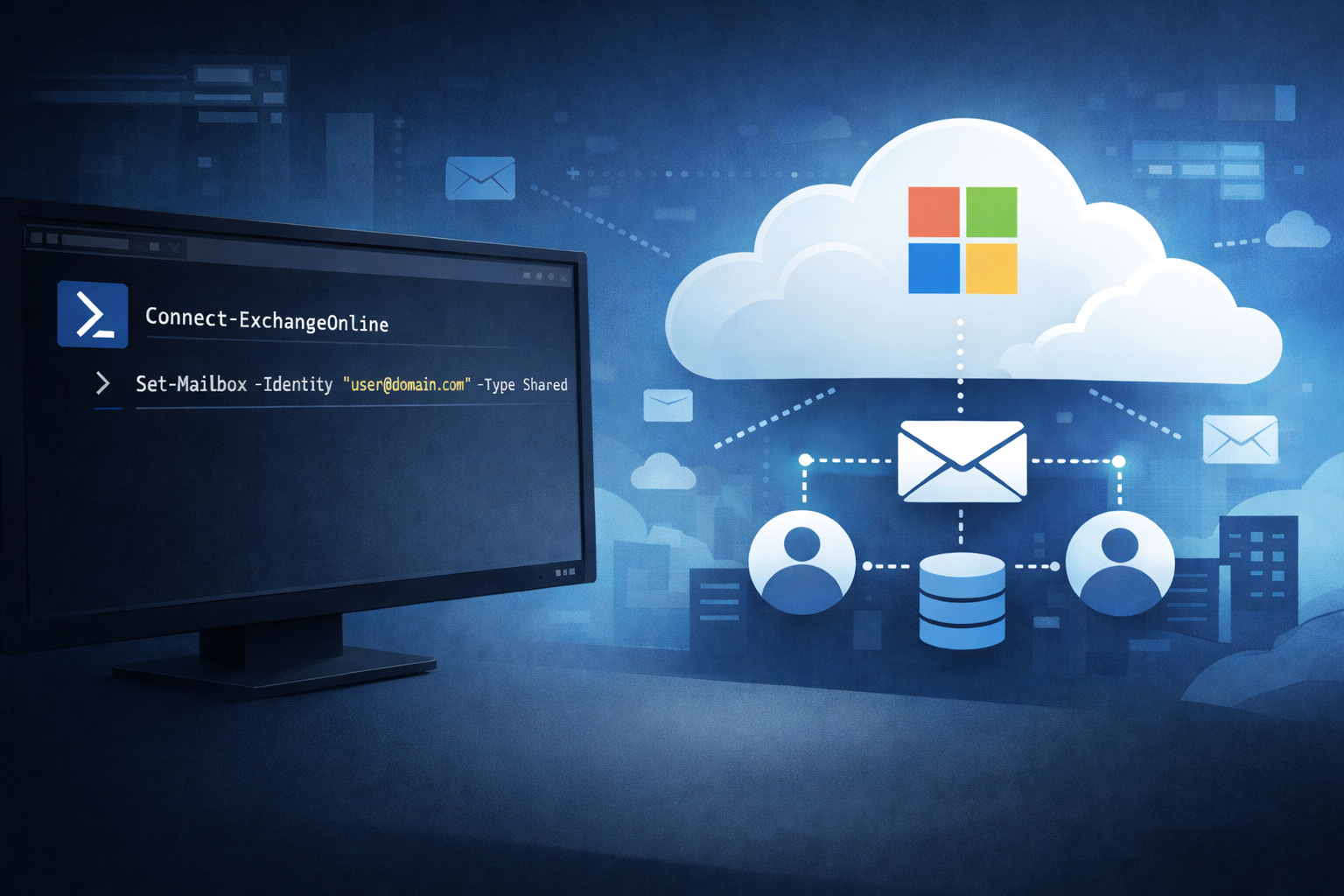
Converting a user mailbox to a shared mailbox is a common offboarding and delegation workflow in Microsoft 365. It lets a team continue to access a mailbox (and optionally send as it) without requiring the mailbox to remain a licensed user, as long as you stay within shared mailbox limits.
When this is the right approach
- Employee offboarding: keep email accessible to a manager or team.
- Role inboxes: convert a person-based mailbox into a departmental mailbox (AP, HR, Support).
- Mail continuity: preserve inbound mail while transitioning senders to a new address.
Prerequisites and important notes
- You must be able to run Exchange Online PowerShell and have the right admin role permissions.
- Shared mailboxes can be up to 50 GB without a license. If the mailbox is over 50 GB, needs an archive, or is on Litigation Hold, it typically requires an Exchange Online Plan 2 license (or equivalent).
- Conversion does not delete mail. The mailbox type changes, and then you assign access to delegates.
Reference: Microsoft guidance on shared mailbox licensing and shared mailbox behavior.
Step 1: Prepare PowerShell and connect to Exchange Online
Before managing mailboxes, PowerShell must be allowed to load the required modules for the current session. Using a process-scoped execution policy avoids making permanent changes to the system.
# Temporarily allow script execution for this session only
Set-ExecutionPolicy -Scope Process -ExecutionPolicy Bypass
Install and load the Exchange Online management module. This module is required to manage mailboxes in Exchange Online.
# Install the Exchange Online module (run once per user profile)
Install-Module ExchangeOnlineManagement -Scope CurrentUser

# Import the module
Import-Module ExchangeOnlineManagement
For general Microsoft 365 administration outside of Exchange (users, groups, licensing, Entra ID), install the Microsoft Graph module. This is not strictly required for mailbox conversion, but is commonly present on admin workstations.
# Optional but recommended for broader Microsoft 365 administration
Install-Module -Name Microsoft.Graph -Scope CurrentUser
Once the modules are installed, connect to Exchange Online using an administrative account.
Connect-ExchangeOnline -UserPrincipalName [email protected]After a successful connection, you can run mailbox conversion and permission commands.
Step 2: Convert the mailbox to Shared
This is the core conversion command. Use the UPN (email address) for clarity.
Set-Mailbox -Identity "[email protected]" -Type SharedTip: If you are converting as part of offboarding, most orgs convert first, then remove the license after confirming access and compliance requirements.
Step 3: Grant Full Access to the shared mailbox
Full Access lets a delegate open the mailbox and work with its contents. By default, Outlook may auto-add the mailbox to the delegate profile (automapping) if Full Access is granted. If you do not want that behavior, explicitly disable automapping.
# Standard Full Access assignment
Add-MailboxPermission -Identity "[email protected]" -User "[email protected]" -AccessRights FullAccess -InheritanceType All

# Optional: disable automapping (often preferred in larger environments)
Add-MailboxPermission -Identity "[email protected]" -User "[email protected]" -AccessRights FullAccess -InheritanceType All -AutoMapping:$false
Optional: Allow the delegate to send mail as the shared mailbox
Many admins confuse Full Access with Send As. They are separate permissions. If the user must send as the shared mailbox address, add Send As.
Add-RecipientPermission -Identity "[email protected]" -Trustee "[email protected]" -AccessRights SendAsStep 4: Verify permissions
Your verification command is a good start. In practice, you usually filter out inherited and default entries so you can quickly confirm your delegate.
# Basic view
Get-MailboxPermission -Identity "[email protected]"

# Cleaner view: show only explicit (non-inherited) permissions
Get-MailboxPermission -Identity "[email protected]" |
  Where-Object { $_.IsInherited -eq $false } |
  Select-Object User, AccessRights, Deny, IsInherited
Common gotchas and troubleshooting
1) “Convert to shared mailbox” is missing in the GUI
- If you are expecting the toggle in Microsoft 365 Admin Center or EAC and do not see it, it is often role-based access or you are looking in the wrong admin surface.
- PowerShell conversion with
Set-Mailbox -Type Sharedbypasses most UI confusion as long as your account has Exchange admin permissions.
2) Mailbox over 50 GB after conversion
- If you remove the license and the shared mailbox is over quota, sending and eventually receiving can be impacted.
- Plan for mailbox size before unlicensing the user.
3) Delegates do not see the mailbox in Outlook
- Propagation can take time.
- If automapping is disabled, the mailbox will not automatically appear and the user must add it manually in Outlook.
- If automapping was previously enabled and you are trying to disable it later, Microsoft’s recommended approach is remove permission then re-add with automapping disabled.
4) Full Access granted but Send As fails
- Full Access does not include Send As.
- Add
Add-RecipientPermission ... -AccessRights SendAsand retest.