
How to Fix the “Your Organization Manages Updates” Error in PC Health Check
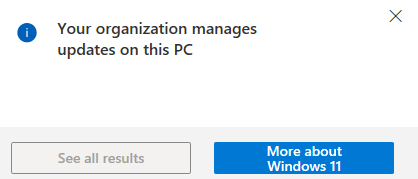
Fixing the “Your Organization Manages Updates” Error in PC Health Check
When running Microsoft’s PC Health Check app, some users encounter a misleading warning stating that updates are managed by their organization. This message can appear even on personal or standalone systems that are not joined to a domain, not enrolled in MDM, and not managed through Group Policy.
This issue commonly surfaces when checking Windows 11 upgrade eligibility and is typically caused by leftover Windows Update policy registry keys.
Symptoms
You may experience one or more of the following:
- PC Health Check reports that Windows Update settings are managed by your organization
- Windows Update settings appear locked or partially unavailable
- The device is not domain joined and not enrolled in Intune or any MDM
- No active Group Policy Objects are configured for Windows Update
- Windows 11 compatibility checks fail or display incomplete results
This is especially common on systems that were previously domain joined, imaged from a corporate template, or managed by third-party update tools.
Root Cause
Windows Update policies can persist in the registry even after Group Policy, MDM, or management tooling has been removed.
PC Health Check reads these registry locations directly. If stale policy keys exist, the app assumes the system is still centrally managed.
The problem is not the PC Health Check app itself, but the leftover policy cache stored under Windows Update registry paths.
Registry Fix
The following registry cleanup removes cached Windows Update policy entries and forces Windows to revert to default update behavior.
Important Notes
- You must run these commands from an elevated Command Prompt
- This applies only to unmanaged systems
- Do not run this on actively domain-managed or Intune-managed devices
Registry Commands
Run each command individually from an Administrator Command Prompt:
reg delete HKLM\SOFTWARE\Policies\Microsoft\Windows\WindowsUpdate /freg delete HKLM\SOFTWARE\Microsoft\WindowsUpdate\UpdatePolicy\GPCache\CacheSet001\WindowsUpdate /freg delete HKLM\SOFTWARE\Microsoft\WindowsUpdate\UpdatePolicy\GPCache\CacheSet002\WindowsUpdate /fThese commands remove:
- Active Windows Update policy keys
- Group Policy cached policy data
- Residual configuration that PC Health Check interprets as organizational control
Final Steps
After applying the registry fix:
- Restart the computer
- Open Windows Update settings and confirm controls are available
- Re-run the PC Health Check application
In most cases, the organizational management warning will be gone and Windows 11 compatibility results will display correctly.
When This Fix Will Not Apply
This solution may not work if:
- The device is domain joined
- The device is enrolled in Microsoft Intune or another MDM
- Active Group Policy Objects are configured for Windows Update
- A third-party patch management agent is installed
In those cases, the warning is expected behavior and reflects proper updates management.