
How to Check if 32-bit or 64-bit Microsoft 365 Apps Are Installed
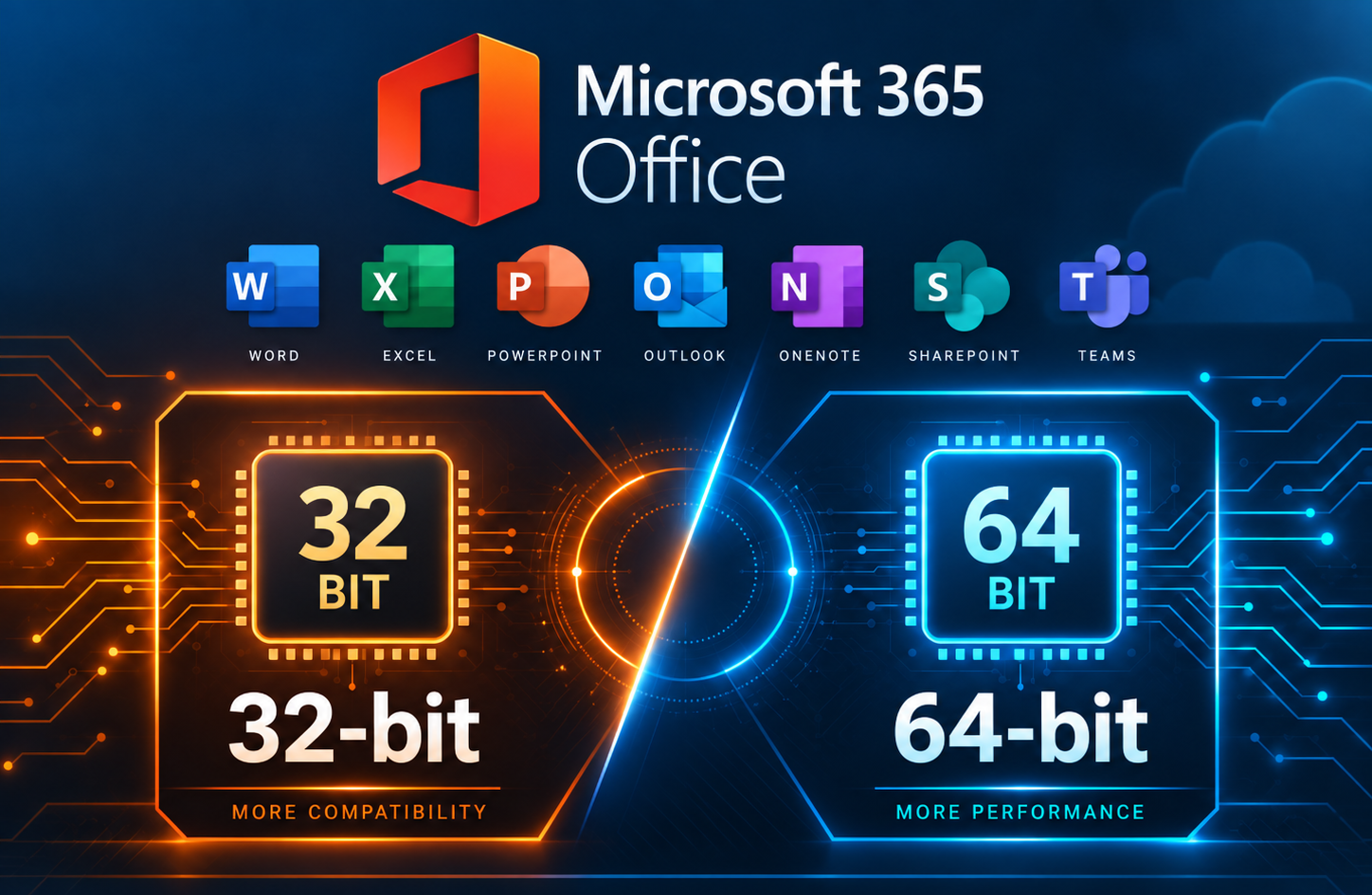
When troubleshooting Microsoft 365 Apps, you may need to determine whether the installed version of Office is 32-bit or 64-bit. This can be important when working with Office add-ins or other software that depends on specific installed Office versions.
This method is especially useful when Microsoft 365 Apps are not activated, since the Office applications may require you to sign in with a licensed Microsoft account or enter a valid product key before you can access the application and check its installed version.
Check Office Architecture Using PowerShell
Open PowerShell and run the following command:
Get-ItemProperty -Path "HKLM:\SOFTWARE\Microsoft\Office\ClickToRun\Configuration" | Select PlatformThe command reads the Platform value from the Windows Registry configuration used by Click-to-Run installations of Microsoft 365 Apps. Click-to-Run is Microsoft’s installation and update system for Microsoft 365 Apps, responsible for installing Office applications, managing their configuration, and delivering updates.
The output will look similar to this:
Platform
--------
x64
The Platform value indicates the installed architecture:
- x86 = 32-bit Microsoft 365 Apps
- x64 = 64-bit Microsoft 365 Apps
For example, if PowerShell returns x64, the computer has the 64-bit version of Microsoft 365 Apps installed.
Check from an Office Application
You can also check the installed architecture without using PowerShell.
Open an Office application such as Word or Excel, then go to:
File > Account > About Word/Excel
The About window will display the installed Office version and indicate whether it is 32-bit or 64-bit.
Further Breakdown of the Command
Get-ItemProperty
Reads properties and values from an item, in this case a Windows Registry key.-Path
Specifies the location that PowerShell should check.HKLM:
Refers to HKEY_LOCAL_MACHINE, which contains system-wide Windows configuration information.\SOFTWARE\Microsoft\Office\ClickToRun\Configuration
This is the registry location containing configuration information for Click-to-Run installations of Microsoft Office / Microsoft 365 Apps.|
The pipe sends the output of the first command to the next command.Select Platform
Displays only the Platform property instead of all the configuration values stored in the registry key.